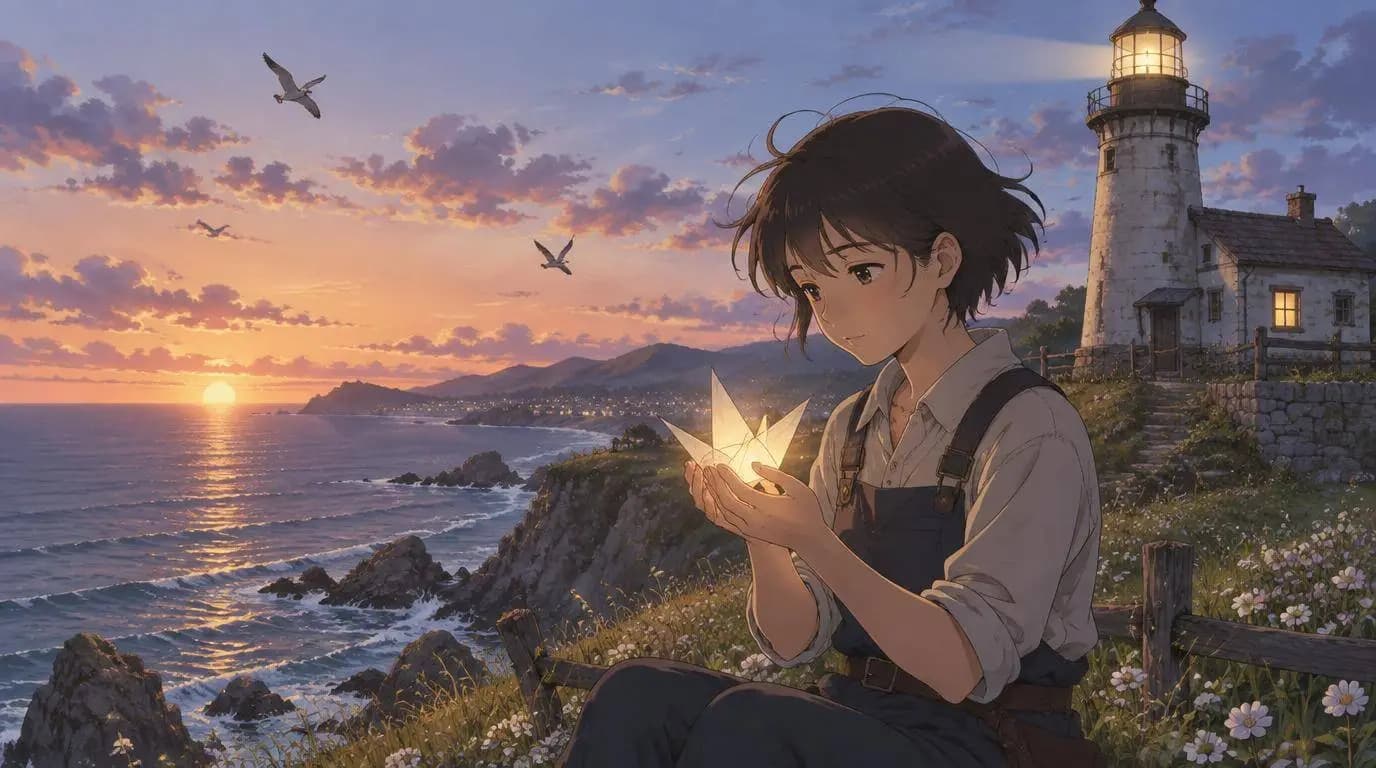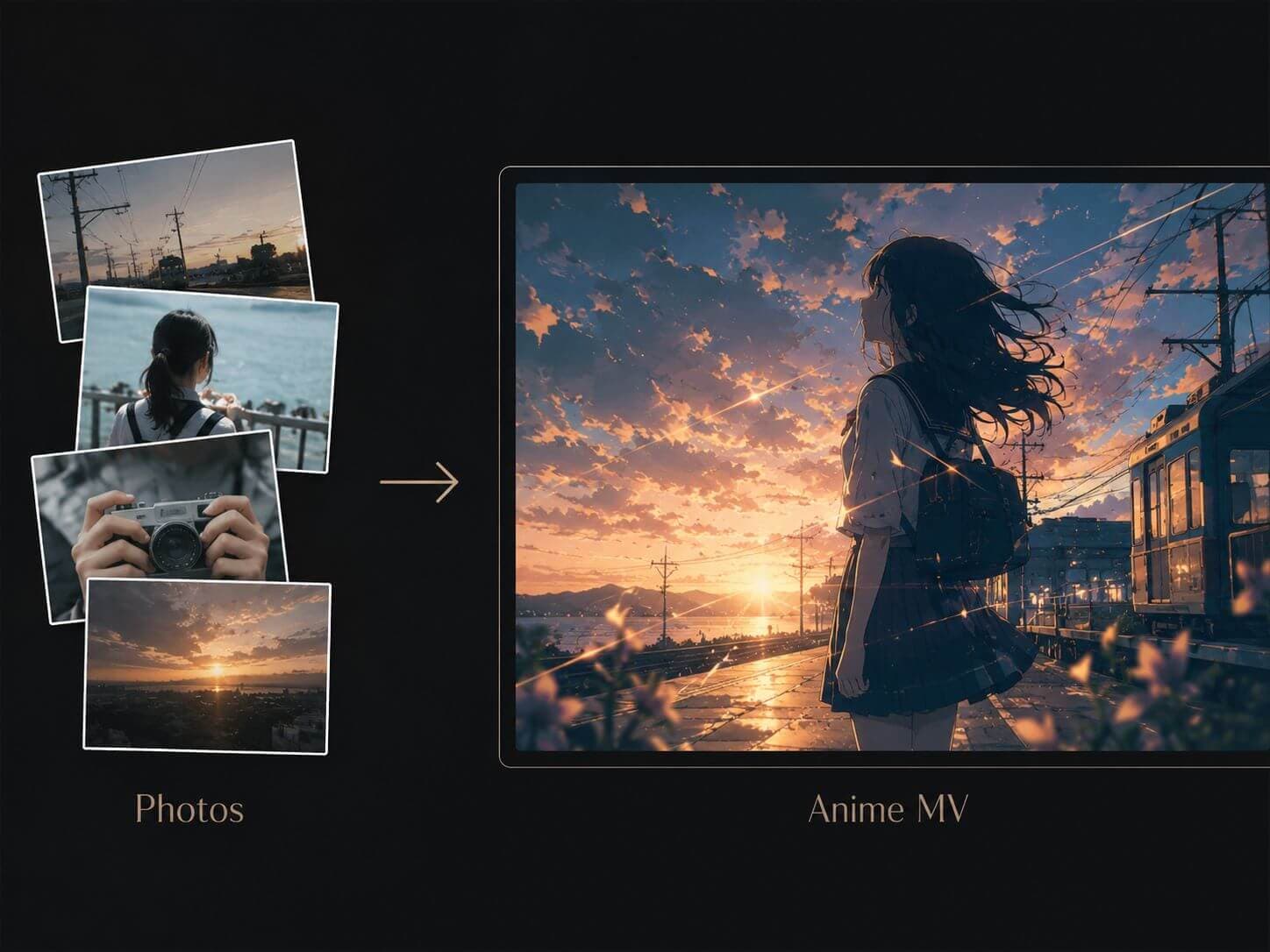
We've all tried it. You get a folder full of gorgeous anime fanart or original character concept art, drop a sick phonk or future bass track into CapCut, and think: "I'm gonna make a clean edit."
Three hours later, you're still splitting clips frame-by-frame, messing with velocity curves, and realized your transitions look generic.
Then you try standard AI video generators to speed things up, only to run into the classic AI video nightmare:
- The character's outfit morphs every 2 seconds (goodbye consistency).
- The video looks like a random, flickering hallucination with zero story.
- The video engine does not really understand musical pacing, so the big moments often miss the energy of the track.
If you're trying to figure out how to make video with pics and music that feels more like a curated, narrative driven AMV or short form manga drama instead of messy prompt soup, you need to shift from random clip generation to a more structured video pipeline.
Here is how to get a more cohesive anime music video without losing your mind in a timeline editor.
The Real Problem with Current "Text-to-Video" Tools for MVs
Let's be real: tools like Runway or Luma can be incredible for isolated, mind bending cinematic shots. But using a general video generator to map out a full music video or a continuous story? That is where things get messy.
The traditional AI workflow usually looks like this:
Gen audio on Udio/Suno ➔ Gen 50 images ➔ Run them through an image-to-video model ➔ Get 50 completely inconsistent clips ➔ Force-cut them in Premiere to match the audio
The AI often does not know what happened in the previous shot. The character may shift from a school uniform to a cyberpunk jacket in the next frame, and the pacing can feel disconnected from the track.
To fix this, a better 2026 workflow is moving toward music first storyboard pipelines like SoulVid. Instead of treating every clip as a separate generation, it helps you plan the visuals around the track, the scene order, and the overall mood from the beginning.
Step-by-Step: The No-Nonsense Way to Make a Cleaner Music Video
If you want a video that people will actually watch on TikTok, YouTube Shorts, or Instagram Reels, follow this workflow to maintain style control.
When learning how to make video using photos and music, the biggest pitfall is style bleeding. If your art style jumps from gritty 90s retro anime to modern hyper-detailed 3D between shots, you ruin the immersion.
Before you touch any video timeline, you need to establish your visual baseline.
- If you have your own assets (manga panels, character art), upload them.
- If you're generating from scratch, lock down a hyper-specific style seed. For example: "90s anime aesthetic, cell-shaded, cinematic night lighting, Tokyo street."
By using clear references and a consistent style direction in SoulVid, you give the AI a much better chance of keeping the overall look unified across the project.

Never make the video first and try to slap music on top later. The audio is the director.
If you are asking yourself, "how can I make music video edits that feel snappy and more intentional?" the secret is to start with the audio, lyrics, or scene idea upfront instead of adding music at the very end.
When you use song lyrics as part of the creative input, they can guide the scene direction. A quiet verse might call for a slower close up. A chorus might need stronger motion, faster cuts, or a bigger visual shift. The point is not to create perfect lyric subtitles automatically. The point is to let the lyrics shape the story, mood, and visual rhythm.

Instead of typing out 20 different prompts for 20 different scenes, a structured video pipeline helps you build a more unified narrative arc.
The workflow should help you turn the emotional pacing of the track into scene prompts that feel connected instead of completely random.
It plans the build-up, the climax, and the outro so that your visual story actually progresses along with the music.

This is where you save hours of editing time. Instead of rendering heavy video clips blindly, the workflow cuts the project into an automated storyboard / animatic.
[Intro: Wide Establishing Shot] ➔ [Verse: Character Close-Up] ➔ [Drop: High-Motion Kinetic Cut]
At this stage, you can review the framing before exporting. You can aim for anime style close ups, camera movement on static art, and cuts that feel closer to the energy of the music. It still helps to review the sequence, but the workflow can reduce a lot of the manual timeline work.

When you're happy with the storyboard sequence, hit render. Depending on where you're dropping the edit, optimize your aspect ratio:
- 9:16 Vertical — For TikTok, Instagram Reels, and YouTube Shorts.
- 16:9 Widescreen — For YouTube, blog embeds, and standard video pages.
- 1:1 Square — For social posts where a square format works better.
Why SoulVid Makes the Fragmented AI Tech Stack Feel Less Painful
Most AI tools still feel like they were built around single clip generation. That is fine for a pretty shot, but it can get frustrating when you are trying to keep a character recognizable, follow a song's mood, and build a video that feels like one complete edit.
SoulVid feels like it was built for creators who are tired of bouncing between four different websites just to make a short music video.
It brings visual references, scene planning, style direction, and storyboard based creation into a more connected workflow.
It helps reduce some of the tedious parts of the process, like organizing the visual direction, planning scenes, and keeping the project closer to one consistent vibe, so you can spend more energy on the style and story.
If you're tired of fighting your editing software and want to make cleaner anime edits, manga style videos, or image based music videos, try building your first project with SoulVid.