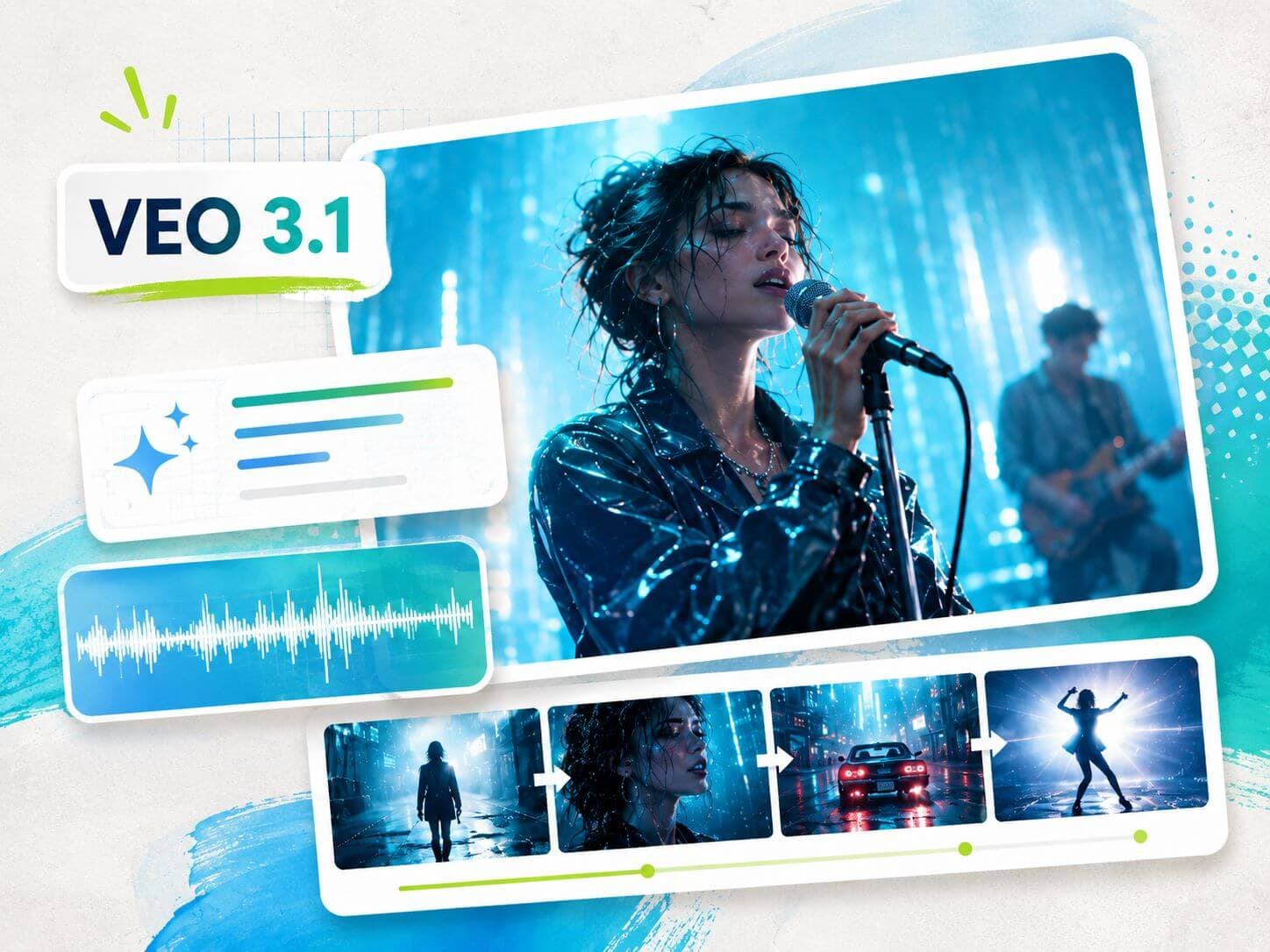
You can open Veo 3.1, type a cinematic prompt, and get a clip that looks expensive. Then comes the harder question: how do you turn that moment into a music video that actually follows the song?
A good AI music video needs structure: the lyric moment you want to visualize, the emotion of each section, the camera move, the subject, the style reference, and the edit timing that will later match your audio.
Without that plan, even beautiful Veo generations can feel disconnected. With it, Veo 3.1 becomes much more useful: one verse scene, one chorus hook, one transition, one performance insert, one loopable visual, one shot at a time.
This guide walks through that clip-based workflow, with practical Veo 3.1 prompt formulas, music-video shot ideas, common limits, and a planning process you can use before you start generating. If you mainly need copy-ready examples, keep the dedicated AI music video prompts guide open alongside this workflow.
Last checked: June 2026. Veo 3.1 availability, pricing, duration, resolution, and model variants may change across Google Flow, Gemini, Gemini API, AI Studio, and Vertex AI.
What Is Google Veo 3.1?
Google Veo 3.1 is a generative video model from Google DeepMind. It can generate high-quality video from text, image, and video inputs, with improvements around realism, audiovisual quality, narrative control, and prompt adherence. For the official model overview, see Google DeepMind's Veo page.
For creators, the practical value is simple: Veo 3.1 can help turn a specific visual instruction into a polished clip. Instead of only describing a subject, you can guide the model with camera movement, atmosphere, reference imagery, and scene transitions.
Google also highlights several Flow capabilities around Veo 3.1:
- Ingredients to Video helps steer a generation with reference images.
- Frames to Video helps guide a transition between a starting frame and an ending frame.
- Extend helps continue video context from an existing clip.
- Insert helps add or modify elements inside a scene.
Availability, exact limits, pricing, and output settings vary by access surface, including Flow, the Gemini app, the Gemini API, and Vertex AI. Treat those details as platform-specific instead of assuming one universal Veo workflow. Because Veo 3.1 settings differ across Flow, Gemini, Gemini API, AI Studio, and Vertex AI, always check the exact surface you are using before planning resolution, duration, price, or extension behavior.
Which Veo 3.1 Version Should Music Video Creators Use?
Veo 3.1 is not just one static product surface. Depending on where you access it, you may see different options such as Veo 3.1, Veo 3.1 Fast, or Veo 3.1 Lite. For music video creators, the right choice depends on where you are in the workflow.
| Veo option | Best use in a music video workflow | What to watch |
|---|---|---|
| Veo 3.1 | Final hero clips, cinematic shots, image-to-video scenes, transitions, and shots where visual quality matters most. | Use it after your shot idea is clear. Do not waste high-value generations on vague exploration. |
| Veo 3.1 Fast | Prompt testing, fast scene exploration, first-pass motion checks, and comparing camera directions before committing to a stronger shot. | Treat it as an iteration layer, not the place where every final clip has to be created. |
| Veo 3.1 Lite | Lightweight concepting, lower-friction drafts, and early visual tests when you are still deciding the scene direction. | It is a lighter Veo 3-series option, so judge it by workflow usefulness instead of assuming it replaces the main model. |
For a music video, the practical workflow is usually not "pick one model and stay there." A better approach is to plan the shot in SoulVid, test the prompt direction with a faster or lighter option when available, then spend more careful generations on the clips that anchor the chorus, hook, bridge, or final visual.
Is Veo 3.1 Right for AI Music Videos?
Yes, if you use it as a cinematic shot generator instead of a full music video editor.
Best fit
- Atmospheric shots: rain, haze, stage light, reflections, close-ups, and textured environments.
- Reference-led scenes: shots that need a consistent character, object, or visual style.
- Transitions: chorus drops, bridge changes, and surreal scene shifts.
- Camera-led clips: dolly shots, macro pans, tracking shots, whip pans, and low-angle movement.
Plan around
- No one-prompt MV: a full song still needs shot planning and editing.
- Resource use: retries, extensions, and edits can consume platform resources quickly.
- Continuity risk: characters, color, lighting, and style need repeated direction across prompts.
- Policy limits: copyrighted imagery, public figures, explicit material, and restricted content still matter.
The takeaway: Veo can generate strong clips, but the quality of the final music video depends on the plan around those clips.
When Not to Use Veo 3.1 for a Music Video
Veo 3.1 is powerful, but it is not the right tool for every part of music video production. Knowing when not to use it protects your budget, editing time, and final quality.
| Do not use Veo 3.1 when... | Why it becomes risky | Better workflow |
|---|---|---|
| You need a complete MV from one prompt | Short generated clips are not the same as a directed three-minute music video with pacing, continuity, and repeated visual motifs. | Plan the MV in scenes, generate clip by clip, then edit the sequence against the final song. |
| You need frame-accurate lyric synchronization | A model can suggest motion and atmosphere, but it is not a lyric timing system. Long lines and fast rap sections will drift. | Use Veo for visual clips, then add lyric captions, karaoke timing, or typography in an editor. |
| You need reliable complex lip sync | Close-up singing, fast mouth movement, and repeated vocalist identity are high-risk areas for generated video. | Use performance footage, a dedicated lip-sync workflow, or avoid tight mouth shots. |
| You need one character to stay identical across many scenes | References help, but long multi-scene continuity still needs repeated control and review. | Lock a character sheet, reuse reference images, keep descriptions identical, and accept only the clips that match. |
| You need exact brand, logo, text, or UI rendering | Generated video can distort letters, logos, product UI, and small graphic details. | Add logos, lyric text, titles, and UI overlays in post-production. |
| You have no edit plan | Random beautiful clips still feel weak if they do not match the song section or cut together. | Build a shot list first, then use Veo only for the shots that have a role in the timeline. |
A Practical Veo 3.1 Music Video Workflow
Use this workflow when you want a short AI music video, lyric visualizer, chorus clip, anime MV, or social video that feels planned instead of random.
- Goal
- Turn one song section into a controlled sequence of clips.
- Method
- Plan scenes first, then write one prompt per shot.
- Output
- A clip list you can generate, review, and edit against the final track.
Listen to the track before writing prompts. Identify the core mood: melancholic, euphoric, aggressive, dreamy, cinematic, surreal, or intimate.
Then mark the moments that need visual emphasis: the first lyric hook, the chorus drop, a bridge, a repeated phrase, or the final outro image. For a lyrics-first setup, use the AI lyric video workflow to turn lines into a scene plan before writing Veo prompts.
Do not create a new world for every lyric line. Most short music videos work better with a few strong visual environments.
- Verse: a rainy late-night street with a solitary performer.
- Pre-chorus: a close-up in a dim studio with pulsing light.
- Chorus: a surreal rooftop or animated stage with stronger movement.
- Bridge: an emotional slow-motion close-up.
- Outro: a quiet cover-art-style loop.
Write down the aspect ratio, subject, color palette, lighting style, environment, camera movement, and reference images before you generate.
If a scene is "rainy neon alley, blue-magenta palette, soft rim light," keep that phrase stable in every prompt from that scene.
Use one focused prompt for each clip. A practical five-part structure works well:

If your generation surface supports reference images, use them to anchor character, style, or object consistency. If you need a precise transition, use first and last frames to define the visual start and end point.
Check each clip against the song moment. Does the camera move match the energy? Does the subject stay recognizable? Does the scene still match the palette? Would it cut cleanly with the next shot?
If a clip is close, extend or edit it where available. If the core composition is wrong, revise the prompt before regenerating.
Bring the generated clips into an editor such as DaVinci Resolve, Premiere Pro, CapCut, or another timeline tool. Use your mastered song as the foundation, then trim clips so visual cuts support the downbeats, lyric hooks, or emotional shifts.
Showcase: 30s K-Pop Cinematic Clip
Instead of using messy neon colors, high-end K-Pop MVs rely on clean framing and cinematic tones. Here is a 30-second sequence generated with Veo 3.1:
3 Rules for the K-Pop Aesthetic
Use Film Language: Drop vague words like "beautiful." Use exact camera prompts like 16:9 anamorphic format, 35mm film grain, and shallow depth of field to force a premium movie texture.
Keep Backgrounds Minimal: Use clean textures like brutalist concrete, overcast lighting, and muted tones. Fewer background elements mean less AI distortion.
Cut to the Beat: Don't worry about matching every lyric line. Just trim your clips and make your visual cuts hit exactly on the major drum drops or bass impacts.
Plan the music video before you generate
Use SoulVid as a planning companion for lyric-to-scene ideas, shot lists, visual direction, and prompt preparation. The goal is not to replace Veo; it is to make every generation attempt more deliberate.
Try SoulVid AI Music Video GeneratorVeo 3 Prompt Formulas and Common Fixes
Use these templates as starting points. Replace the bracketed placeholders inside each prompt with your own song, style, and scene details. For more reusable camera language, shot framing, and prompt anatomy, pair this section with the cinematic prompt generator guide.
01The Lyric Hook
Why it works: The prompt gives the model a clear focal point, camera behavior, and controlled emotional atmosphere.
02The Chorus Drop
Why it works: Low-angle movement and strong backlighting make the shot feel bigger, faster, and more physical.
03The Anime MV
Why it works: The style terms keep the shot closer to animation language instead of drifting into photorealistic textures.
04The Cinematic Band Visual
Why it works: It tells the model how the light should interact with haze, which creates depth and separates the performer from the background.
05The Cover-Art Loop
Why it works: The prompt protects the main artwork while allowing controlled motion in the background.
06The Emotional Bridge Scene
Why it works: Close-up framing and soft light help the scene focus on expression instead of unnecessary background movement.
07The Vertical Short
Why it works: The vertical framing instruction keeps the subject centered for mobile-first viewing.
08The Transition Shot
Why it works: The camera behavior gives the transition a clear physical logic instead of asking the model to invent a vague scene change.
Common Veo 3.1 Music Video Mistakes to Avoid
A strong shot prompt should match the song section. Describe whether the clip is for a chorus drop, bridge, intro, hook, or outro so the motion and mood support the track.
Veo works better as a shot generator than a full music video editor. Break the song into short scenes, generate one usable clip at a time, then assemble the final timeline separately.
Use lyrics as creative direction, not as a frame-accurate script. Turn key lines into visual moments, symbols, settings, or character actions that can survive generation and editing.
If every prompt uses different wording for the same performer, outfit, color palette, or world, the edit will feel disconnected. Repeat the stable details across related shots.
A cinematic 16:9 shot and a vertical short need different framing. Decide the target platform before writing the prompt so the subject, camera movement, and composition fit the final canvas.
Even strong generated clips need trimming, ordering, beat matching, color consistency, and a mastered audio track. Treat Veo as part of the music video workflow, not the last step.