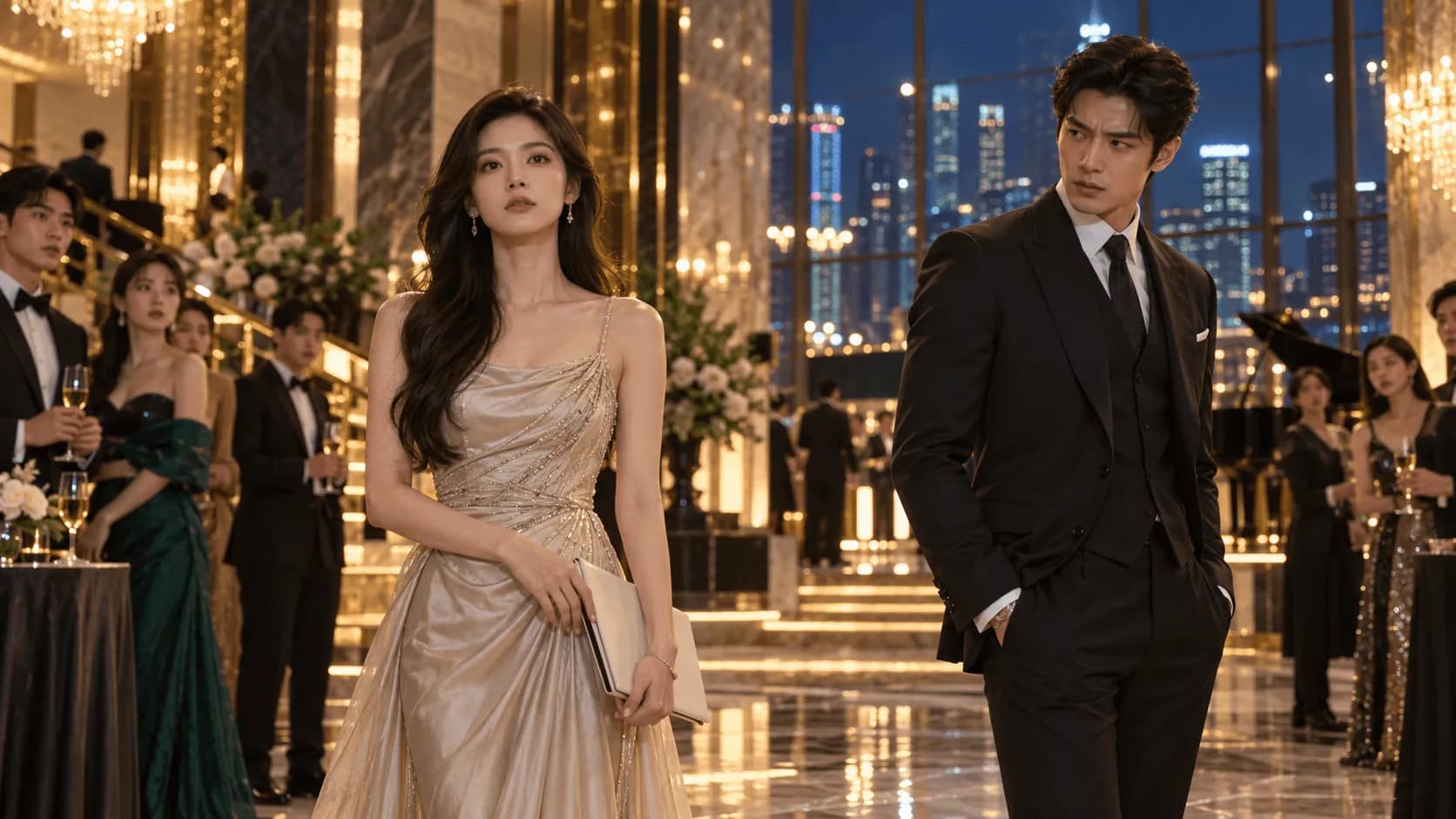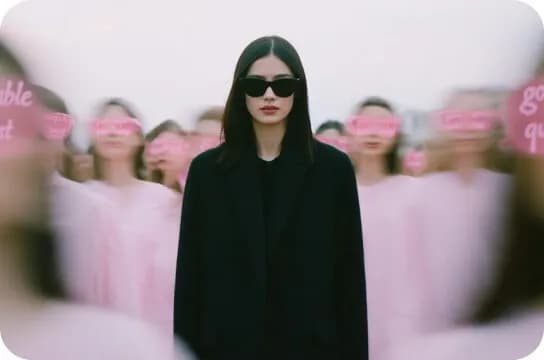
A Spotify Canvas is small enough to look simple and strict enough to expose every weak decision. The loop has only a few seconds to establish motion, survive the player interface, and return to its first frame without making the listener notice the edit. This guide explains how to make a Spotify Canvas from cover art with AI, using one dream-pop release to test three different loop structures.
The case study is a fictional single called Midnight Lines. Its cover-art world shows one woman from behind at a rain-soaked train station: black coat, vivid red scarf, blue-black night, and one warm band of light from a passing train. Instead of asking AI for "a cool animated cover," we will turn those fixed elements into a Continuous Loop, a Rebound Loop, and a hidden Hard-Cut Loop.
- Song
- Midnight Lines, a slow dream-pop single
- Source
- One cover-art direction with a locked subject, setting, and palette
- Test
- Three restrained six-second loop concepts
- Output
- One vertical Canvas checked against Spotify's current rules
Quick Answer: Spotify Canvas Size, Length, and Format
The current Spotify for Artists guidance is concise: Canvas supports a 3-8 second vertical visual in a 9:16 ratio. Spotify lists MP4 for video and JPG for a static Canvas, with a frame height between 720 and 1080 pixels. The practical target for an AI video is a 1080 × 1920 MP4 lasting about six seconds.
| Requirement | Current Spotify guidance | Practical working target |
|---|---|---|
| Spotify Canvas dimensions | 9:16 vertical; 720-1080 px tall | 1080 × 1920 px |
| Spotify Canvas length | 3-8 seconds | 6 seconds |
| File type | MP4 or JPG | MP4 for an animated loop |
| Audio | The Canvas plays with the song | Export the visual without relying on clip audio |
| Text | Avoid repeating the song and artist name | Keep the focal action clear without copy |
| Loop structure | Continuous, Hard Cut, or Rebound | Choose the structure before generation |
These are the core Spotify Canvas specs, but passing the technical checklist does not guarantee a good result. The center of the image must remain readable behind the Spotify player interface, and the first and last frames must work together as a loop.
The Real Test: Turning One Cover into Three AI Canvas Loops
The useful question is not whether AI can animate a still image. It is whether the motion preserves what listeners already recognize from the cover.
For Midnight Lines, the visual anchors are deliberately limited:
- Subject: one adult woman shown from behind, wearing the same black coat.
- Signature detail: one vivid red scarf, used as the smallest repeating motion.
- Location: the same wet train platform at night.
- Lighting: cool blue-black ambience with one warm train-light pass.
- Camera: a mostly locked vertical frame with no rapid reframing.
- Restraint: no singing, talking, lip sync, captions, crowds, or fast edits.
The three concepts use the same visual world but solve the seam differently.
| Loop direction | What moves | Where the seam hides | Main risk |
|---|---|---|---|
| Continuous Loop | Rain, scarf, faint platform reflections | Motion returns naturally to the opening state | AI may drift the scarf or body pose |
| Rebound Loop | Train light travels across the subject | The clip plays forward and then backward | Reversed rain or fabric can look mechanical |
| Hidden Hard-Cut Loop | A dark train-window wipe crosses the frame | The wipe covers the cut back to frame one | The wipe may feel like an obvious transition |
Prepare the Cover Art for a Vertical Canvas
Square cover art and a vertical Canvas do different jobs. Do not stretch a square image to 9:16. Recompose it so the subject remains recognizable while the top and bottom gain believable environment.
For this case, the woman sits near the vertical center rather than at the bottom edge. The scarf remains visible inside the middle third of the frame, and the train light crosses behind her shoulders. Extra platform, roof, and reflection detail extends the scene without inventing a second subject.
Use this preparation checklist before generating motion:
- Start from the highest-resolution cover source available.
- Remove the song title, artist name, release date, and promotional copy from the motion source.
- Extend the environment to 9:16 instead of stretching the original composition.
- Keep the face, hands, logo-like details, and small accessories away from interface-heavy edges.
- Approve one still vertical frame before spending credits on animation.
- Save the square cover and vertical source separately so one does not overwrite the other.
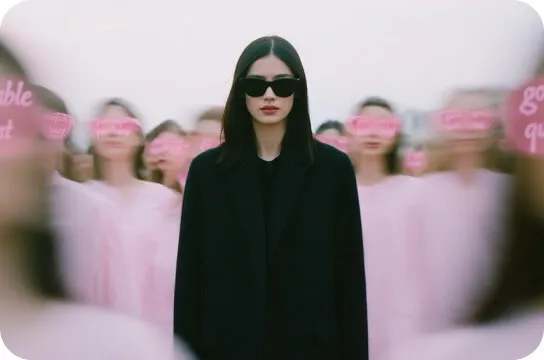
Generate Three Spotify Canvas Concepts with AI
Generate the concepts separately. Asking for all three loop types in one video encourages the model to blend them into a busy montage, while a Canvas works best when one motion rule is easy to read.
If you want more starting points before adapting a prompt to your own cover, see these AI music video prompt examples.
Continuous Loop Prompt
Create a six-second, 9:16 photorealistic visual loop for the dream-pop single Midnight Lines. One adult woman is seen from behind, standing still on a rain-soaked train platform at night. She wears a long black coat and one vivid red scarf. Keep the same body position, coat construction, scarf shape, station architecture, wet platform, and blue-black palette throughout.Use a locked medium-wide camera. Only the loose end of the red scarf moves gently in a repeating breeze. Fine rain falls steadily, and the wet platform carries a soft warm reflection from a train outside the frame. Make the scarf, rain density, reflection, and body pose return naturally to their exact opening state at the end.
No camera move, zoom, face reveal, walking, talking, singing, lip sync, extra people, text, logos, flashing lights, rapid cuts, or new objects. The first and final frames must connect as a seamless continuous loop.
This is the quietest option. It keeps the cover recognizable and lets the song remain the main event. The weak point is state drift: a slightly different scarf length or shoulder position at the end will reveal the seam.
Rebound Loop Prompt
Create a three-second forward motion designed to become a six-second rebound loop in a 9:16 Spotify Canvas. One adult woman stands with her back to camera on the same rain-soaked train platform, wearing the same black coat and vivid red scarf. The camera remains locked.A warm train light moves slowly from left to right across the wet platform and the back of her coat. The woman does not turn or change pose. Keep rain fine and visually soft so reversed motion is not distracting. The scarf makes one very small lift as the light reaches the center, then settles.
Design the movement so the clip can play forward and backward without an obvious pause. No train entering the frame, no walking, face reveal, dialogue, lip sync, fast motion, flashing light, text, logos, or additional people.
The Rebound version is easier to close because the reverse playback returns to the first frame automatically. It works only when the motion can plausibly reverse. A person taking a step, a door opening, or heavy rain splashing upward on the return would expose the trick.
Hidden Hard-Cut Loop Prompt
Create a six-second, 9:16 cinematic Spotify Canvas loop for Midnight Lines. Keep one adult woman from behind in the same black coat and red scarf, standing on the same wet station platform at night. Use a locked camera and restrained dream-pop mood.For the first four seconds, show only subtle rain, scarf movement, and a warm light growing across the platform. Near the end, a dark train-window reflection passes very close across the camera from right to left until it briefly covers the entire frame. Use that full dark occlusion to hide a hard cut back to the opening composition.
The frame immediately after the wipe must match the original body pose, scarf shape, station layout, and lighting base. No visible passengers, faces, talking, singing, lip sync, captions, logos, fast cuts, strobing, or camera shake.
This version does not need the final visible frame to match the first one. It needs the occlusion to be complete enough that the viewer cannot compare them during the cut.
Using SoulVid as One Option for the AI Loop
SoulVid is one option worth testing when you have a finished song, a cover-art direction, and several visual ideas but do not want to plan every candidate manually. It is better understood as a conversational music-video workspace than as a dedicated Spotify Canvas maker.
In the Midnight Lines test, I opened the Music MV workflow and entered the full visual brief: song mood, woman, black coat, red scarf, rainy station, three loop structures, six-second target, and a list of unwanted motion. SoulVid understood the dream-pop direction and converted it into an editable music setup instead of ignoring the creative constraints.
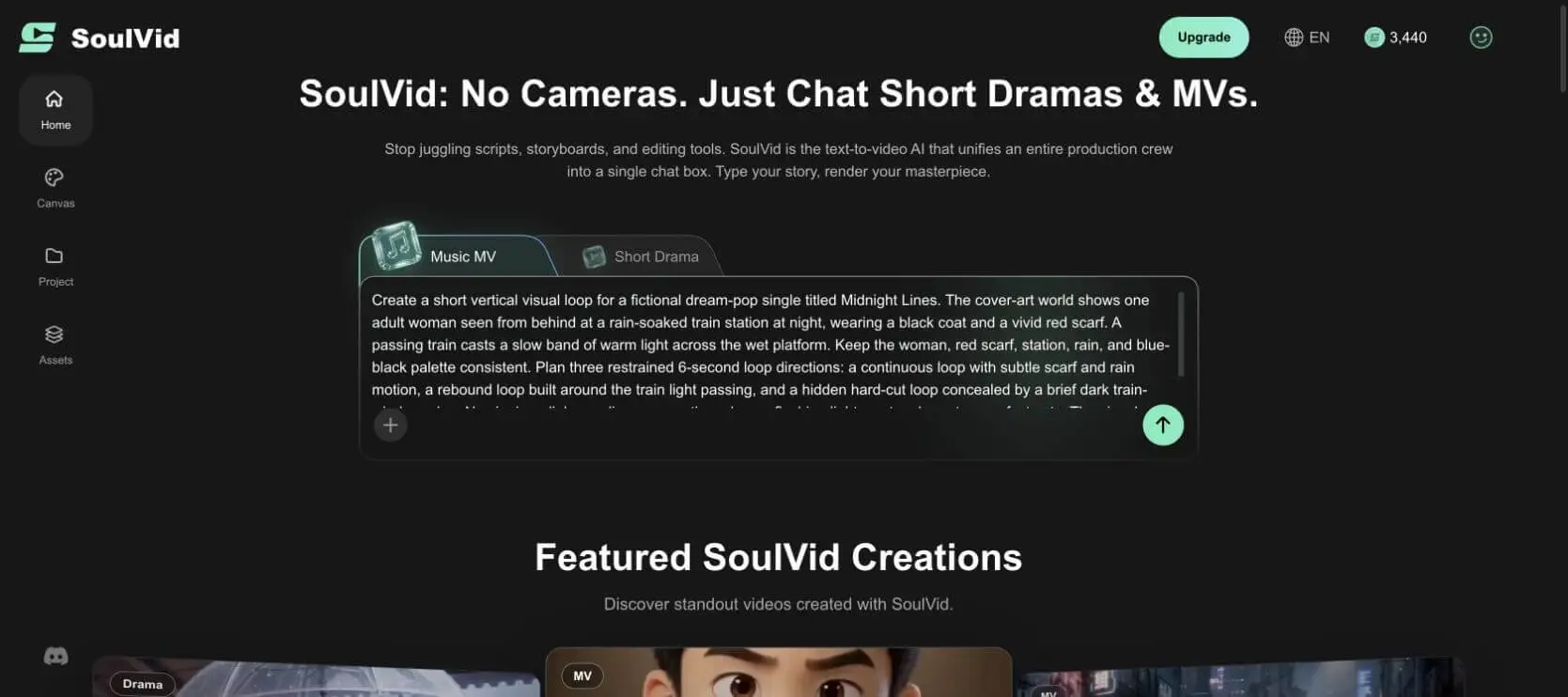
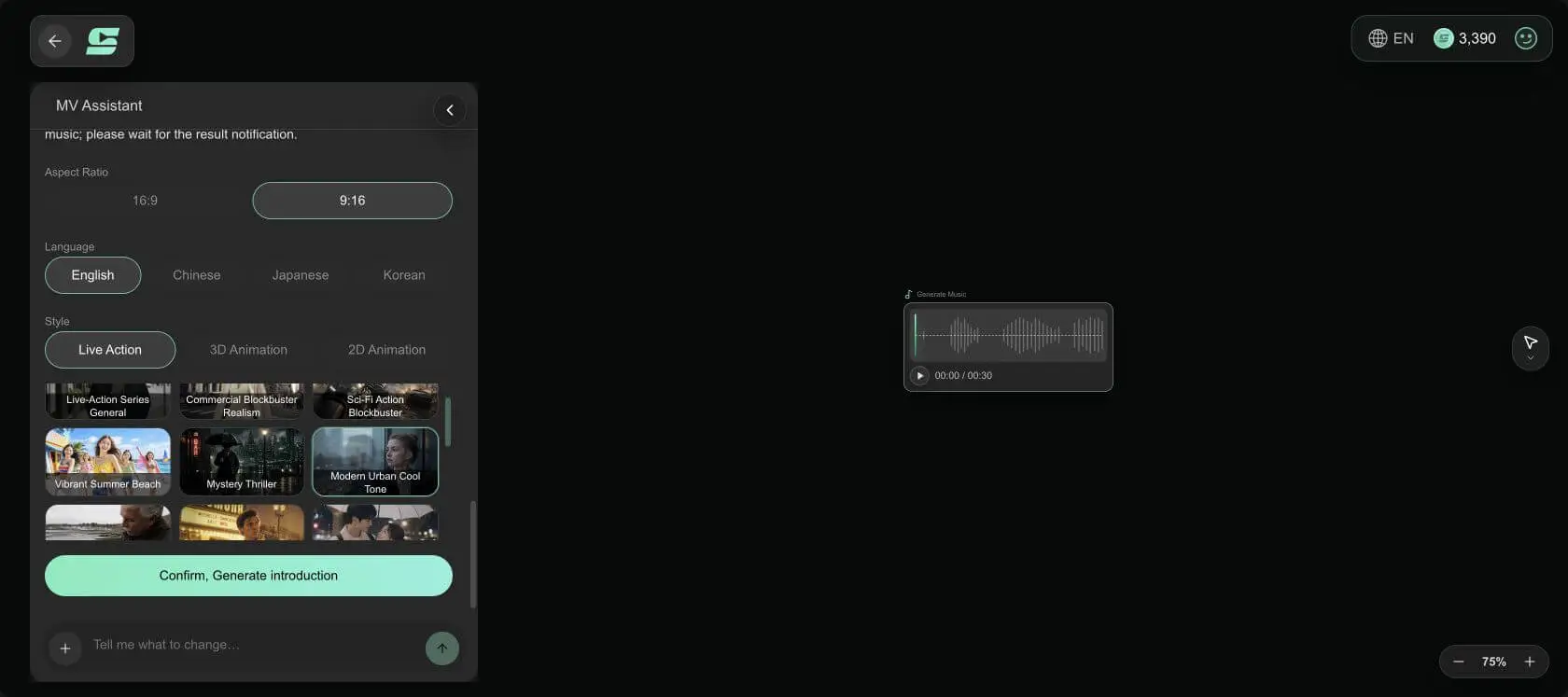
Why SoulVid Can Be Useful Here
- It accepts creative context, not only a motion prompt. You can describe the song, cover world, subject, palette, and emotional role of the loop in one conversation.
- It keeps planning visible. The workflow separates music, project details, assets, storyboard, and video rather than hiding every decision behind one generate button.
- It supports revision. A failed direction can be described in normal language, such as "keep the frame but reduce scarf motion" or "replace the rebound with a dark-window wipe."
- It can grow beyond one Canvas. The same visual world can later support a teaser, lyric clip, vertical short, or longer music video.
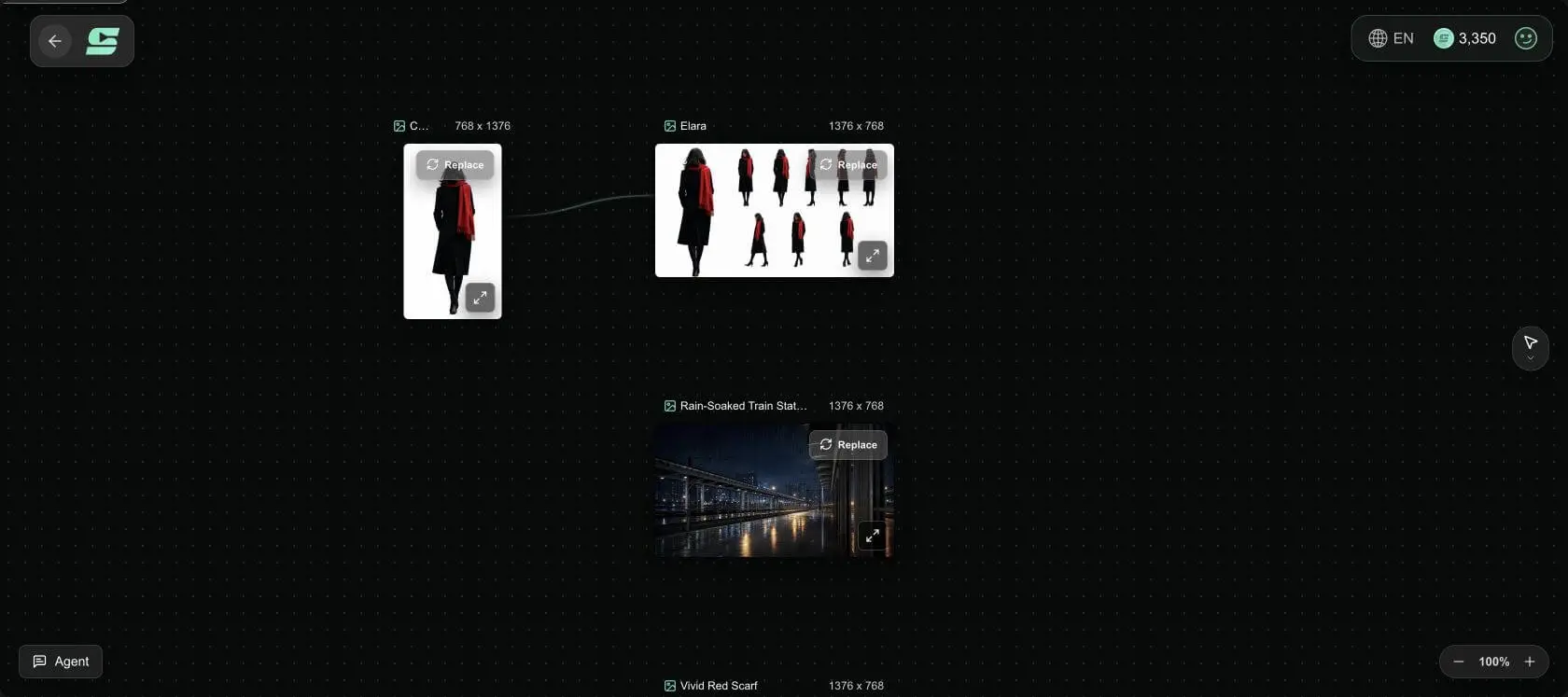
The practical limitation appeared immediately: SoulVid first asked for AI-generated music or an uploaded track. It is designed around an audio-led MV workflow, not a direct cover-art-to-Canvas export. For an already released song, upload the final master. For this fictional test, I generated a simple instrumental dream-pop track so the project could continue.
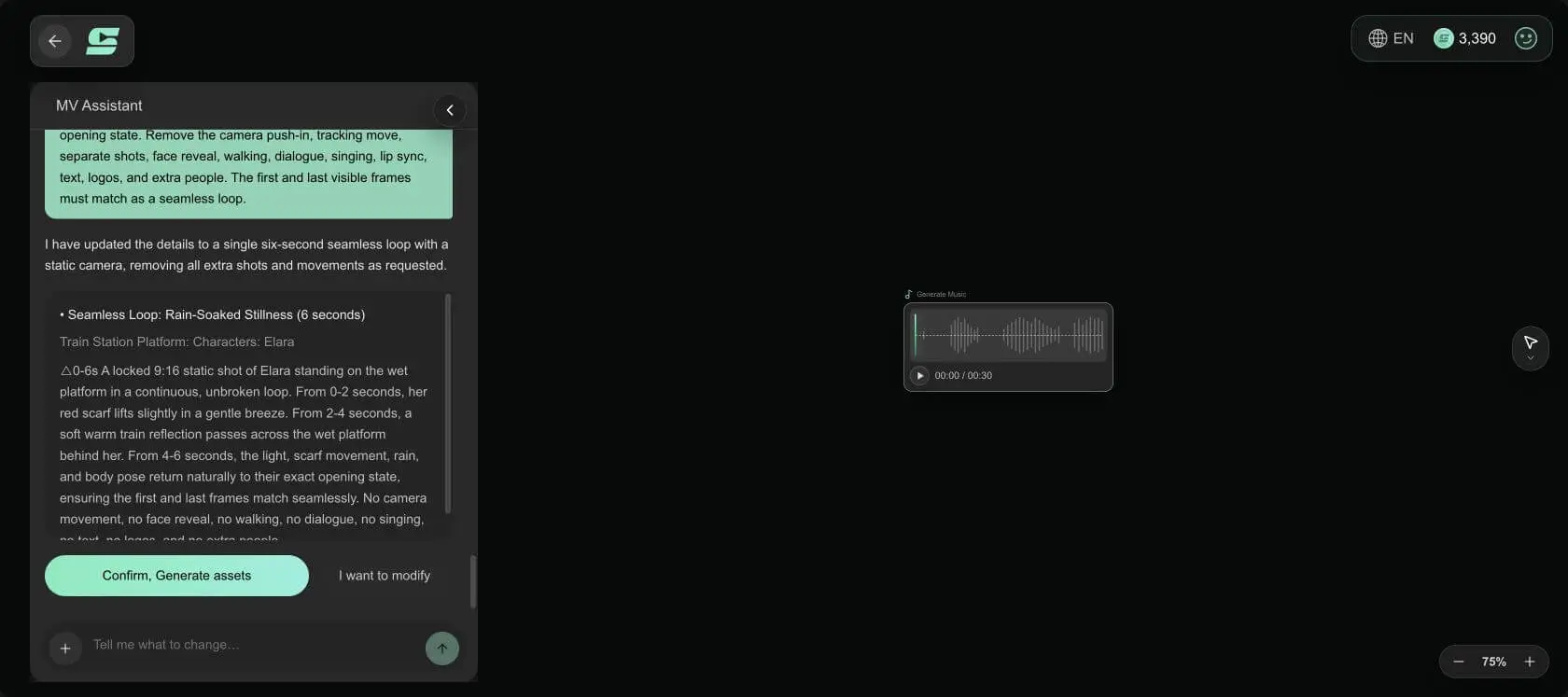
The first detailed draft also expanded the brief into three sequential shots lasting 12, 10, and 8 seconds. That is a reasonable full-MV interpretation, but it ignored the six-second Canvas target. A direct revision fixed the details: one locked 9:16 camera, one six-second shot, and an exact return to the opening state.
One more limit appeared at the storyboard stage. The generated storyboard text reintroduced a fade and two cuts even though the project details asked for an unbroken Continuous Loop. A chat revision did not update it because the editing window had closed. Opening the storyboard card and replacing its generation prompt directly did work. In practice, review the card-level prompt before spending credits on video, even when the higher-level summary looks correct. This AI video storyboard guide explains how to check the shot plan before generation.
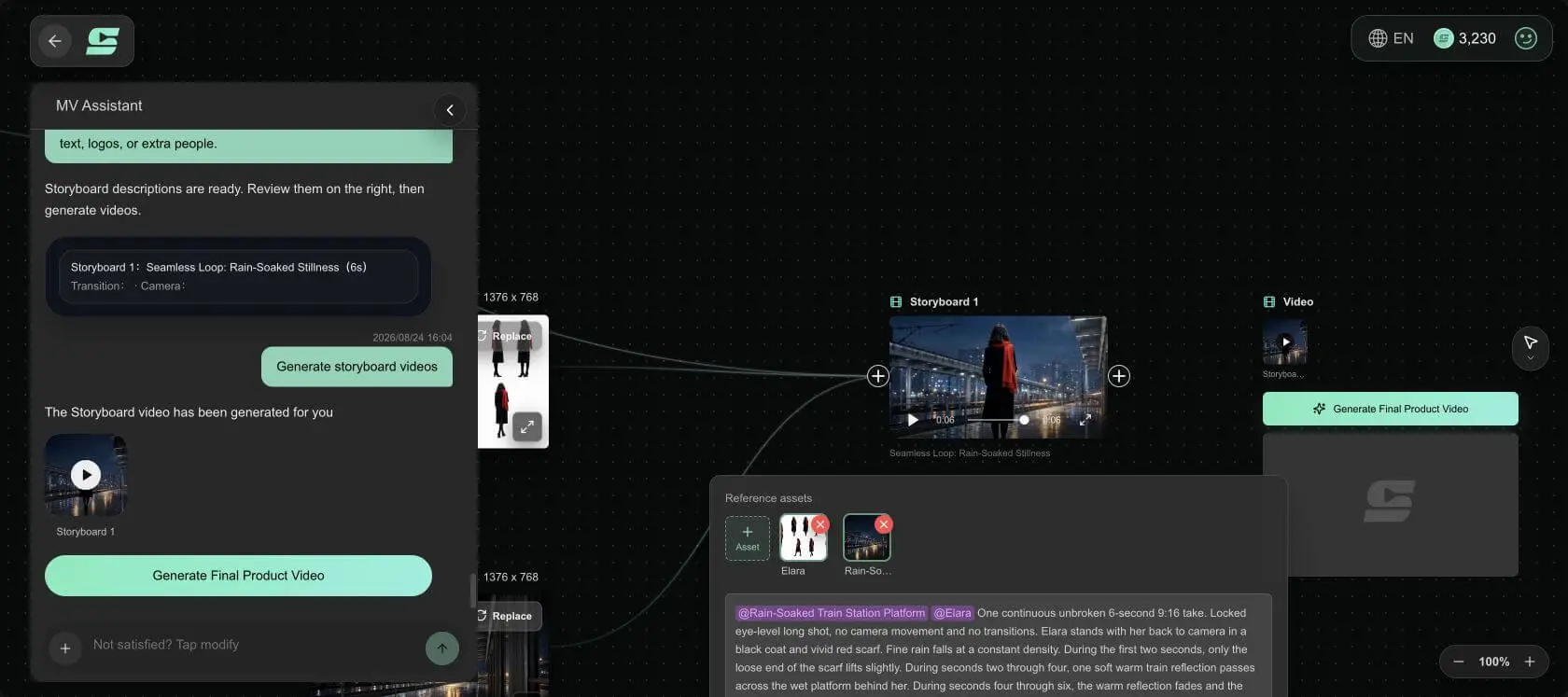
The corrected card produced a 6.04-second portrait video with the right woman, red scarf, station, rain, and warm platform reflection. The visual direction was recognizably connected to the brief. It was not a finished Spotify upload: the rendered frame was 496 × 864 rather than an exact 9:16 export, and the opening and closing frames still differed in rain, light, and character silhouette.
SoulVid also does not upload to Spotify for Artists or certify that an export meets every Canvas requirement. You must still check the final Spotify Canvas size, duration, file type, crop, player overlay, and loop seam yourself.
Explore a Song-First Visual Workflow
Bring a song, cover-art direction, and visual brief to SoulVid, then compare and revise the strongest scene before preparing the final Canvas export.
Try the SoulVid AI Music Video GeneratorWhich AI Canvas Worked Best?
For Midnight Lines, the Continuous Loop remains the best creative direction. The moving scarf provides a visible hook, the rain adds texture, and the warm reflection introduces the train without turning the Canvas into a miniature trailer. Most importantly, the motion supports the dream-pop track instead of demanding attention from it.
The first generated file did not pass the loop test. At the end, the rain pattern, warm reflection, and outline of the woman were not identical to the opening frame. The change is small in a still comparison but visible when the clip repeats. Treat that output as source footage, not as a finished Canvas.
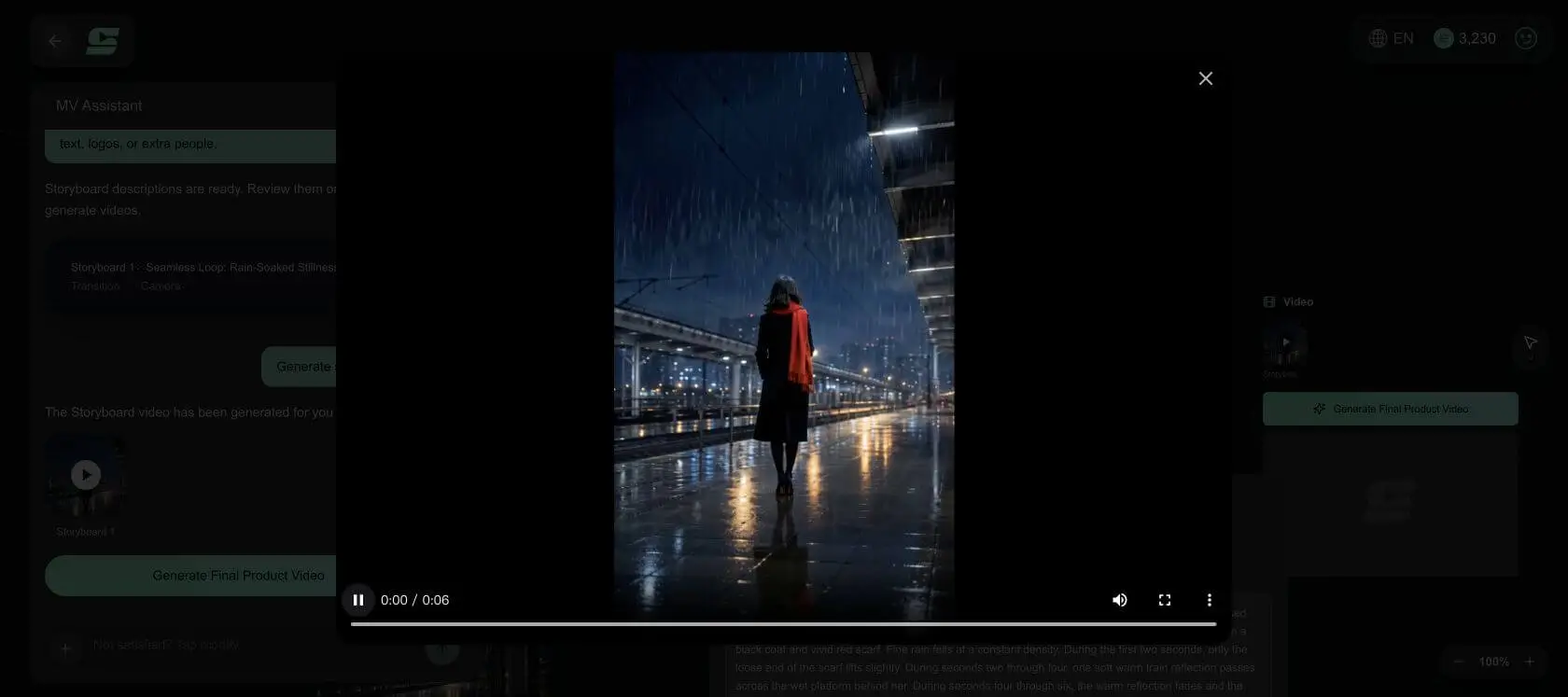
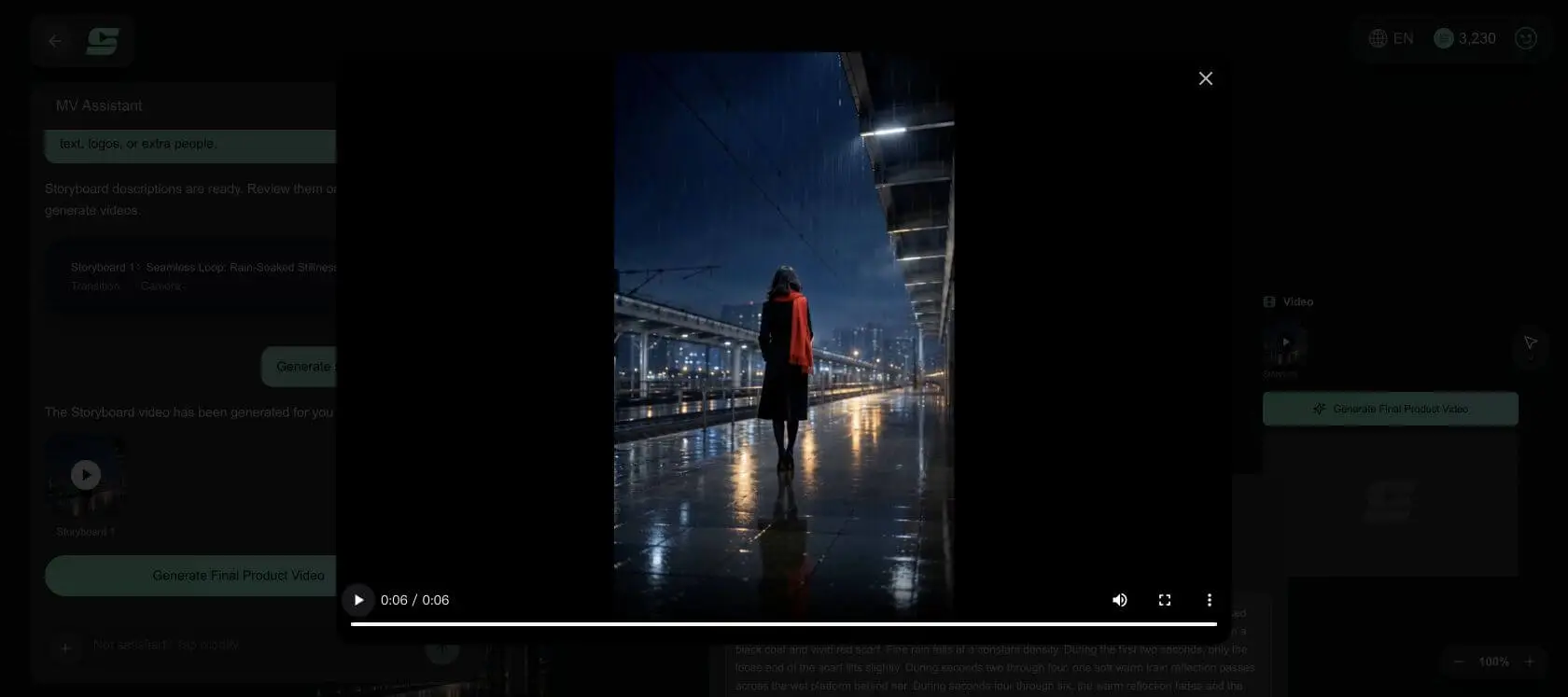
For this actual output, the Hidden Hard-Cut version is the safer publishable backup. Add a full dark train-window wipe, cut while the frame is covered, and return to the opening image. The occlusion gives the editor a reliable seam and hides small changes in scarf position or rain texture. A second option is to trim a section with reversible motion and build a short Rebound Loop in an editor.
The Rebound version ranks third. It closes neatly, but the backwards train light and reversed rain become noticeable after repeated viewing. Rebound works better when the moving element is abstract, slow, and physically believable in either direction.
Use this decision rule:
- Choose Continuous when the motion can return to the same state naturally.
- Choose Rebound when the action reads equally well forward and backward.
- Choose a hidden Hard Cut when an object, shadow, blur, or darkness can cover the seam.
Fix Common AI Loop Problems
The Character Drifts Between Frames
Reduce the amount of body movement. Lock the camera and pose, then animate one secondary element such as fabric, hair, rain, smoke, reflection, or light. If the face is not important to the cover, keep the character facing away rather than asking for a turn that creates a new identity problem. For scenes that must show the same person more clearly, use the reference and prompt controls in this guide to keeping characters consistent in AI video.
The Loop Pauses at the Seam
Trim frames from the end before adding a dissolve. A dissolve often creates a ghosted double image rather than a seamless loop. If the states remain too different, redesign the last second around a full-frame wipe or shadow.
The Rebound Looks Obviously Reversed
Remove actions with gravity, impact, walking, liquid splashes, or obvious cause and effect. Use light, soft fabric, fog, slow camera drift, or abstract reflection instead.
The Canvas Feels Too Busy
Delete a motion layer. One subject, one light event, and one secondary texture are usually enough. Spotify already supplies the song title, artist, controls, and album context around the visual.
Important Details Sit Behind the Player Interface
Preview the video on a phone-sized 9:16 frame with controls over it. Move the signature action toward the visual center and avoid placing faces, hands, or the red scarf at the extreme top or bottom.
Export the Final Spotify Canvas
Export a clean master before uploading. For the selected Continuous Loop, use these working settings:
| Export setting | Recommended value |
|---|---|
| Frame | 1080 × 1920 px, 9:16 |
| Duration | 6 seconds |
| Container | MP4 |
| Frame rate | Keep the project frame rate consistent |
| Audio | Not required for the loop itself |
| First and last frame | Visually matched or deliberately hidden |
| Text | None |
Watch the exported file at least five times in a row. Do not scrub it. The point is to experience the seam the way a listener will. Then preview it on a phone and check compression, banding in dark gradients, rain flicker, scarf shape, and safe placement behind the interface.
Upload the Canvas in Spotify for Artists
On the web, open Spotify for Artists, go to Music, choose the track, and select Add Canvas. Spotify currently allows a Canvas for released and upcoming tracks when you have access to the artist profile and the necessary Admin or Editor permission.
Before confirming the upload:
- Verify that you selected the correct track and artist profile.
- Watch the preview with the player interface visible.
- Check that the subject remains readable on a phone.
- Let the preview loop several times and listen for the moment when your eye notices the seam.
- Replace the file if the crop, motion, or transition feels distracting.
Spotify manages the upload and association with the track. SoulVid, an AI video model, or a desktop editor prepares the visual file; it does not replace Spotify for Artists.
Spotify Canvas Rules AI Creators Should Know
AI-generated motion still has to follow Spotify's content and presentation rules. The model does not know whether your rights, promotional claims, or final crop are acceptable.
- Use visuals you have the right to upload, including the cover source, people, logos, and generated assets.
- Avoid talking, singing, and lip-sync footage; Spotify's guidance notes that it will not stay synchronized with the song.
- Avoid rapid edits and intense flashing imagery.
- Do not repeat the track title or artist name that Spotify already displays.
- Do not add URLs, social handles, calls to follow, sales copy, or overtly promotional messaging.
- Check the visible crop on a phone rather than trusting a clean editor preview.
- Keep the Canvas consistent with Spotify's content policy and the rights attached to the release.