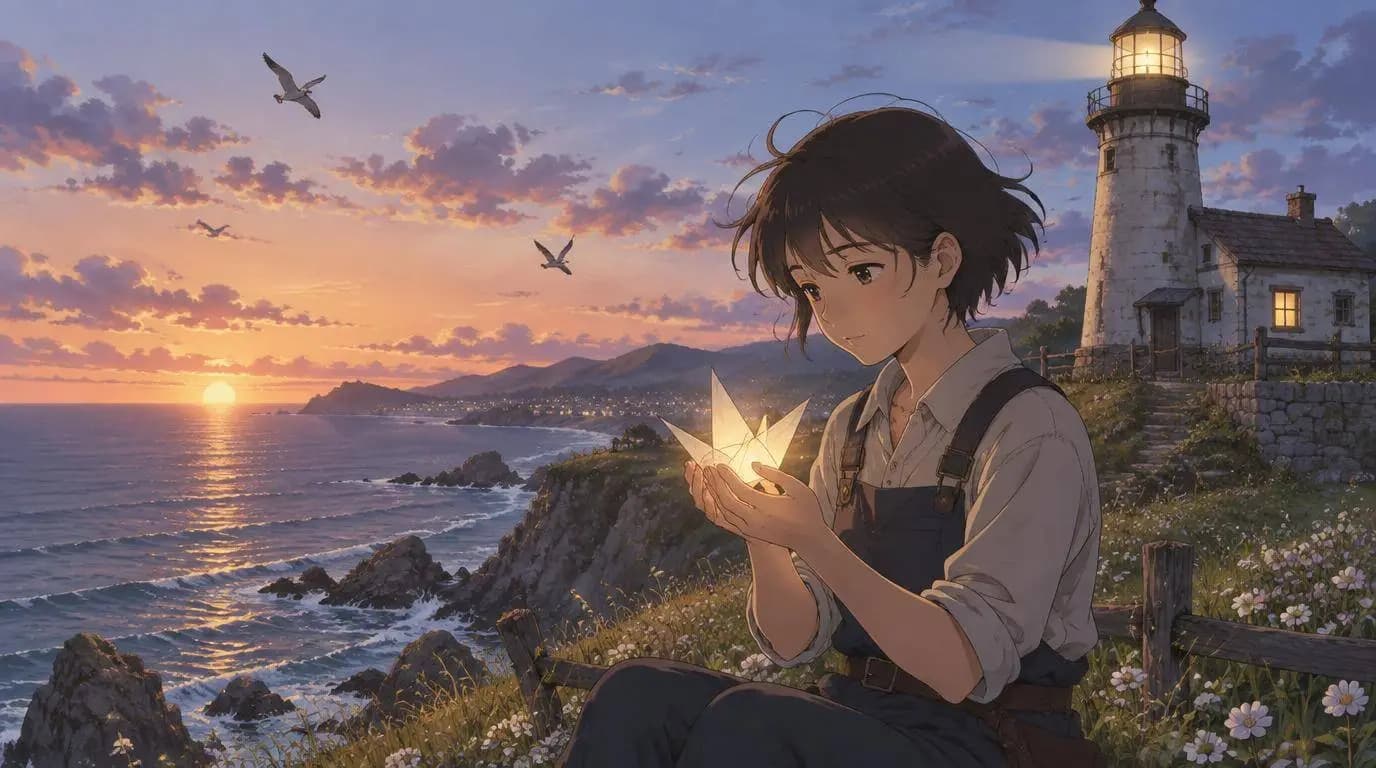
Can AI make a full anime episode? I have tried a lot of AI video workflows, and here is the honest answer: yes, AI can help you make a full anime episode, but the good results do not come from one giant prompt.
The first few times I tried, I did what most people do. I wrote a long prompt, asked for a complete anime story, and expected the tool to magically keep the same character, setting, pacing, and ending. The clips looked cool for a few seconds, then everything started drifting. If that is the exact problem you keep running into, this guide on how to keep AI characters consistent in video is a useful next read.
The better way is to treat the episode like a small production. In SoulVid, that means moving through the workflow step by step: Prompt -> Summary -> Details -> Asset Prompts -> Asset Images -> Storyboard Text -> Storyboard Videos -> Final Video.
That sounds more structured than "just generate a video," but it is actually easier. You are not doing everything manually. You are reviewing each stage before SoulVid moves to the next one.
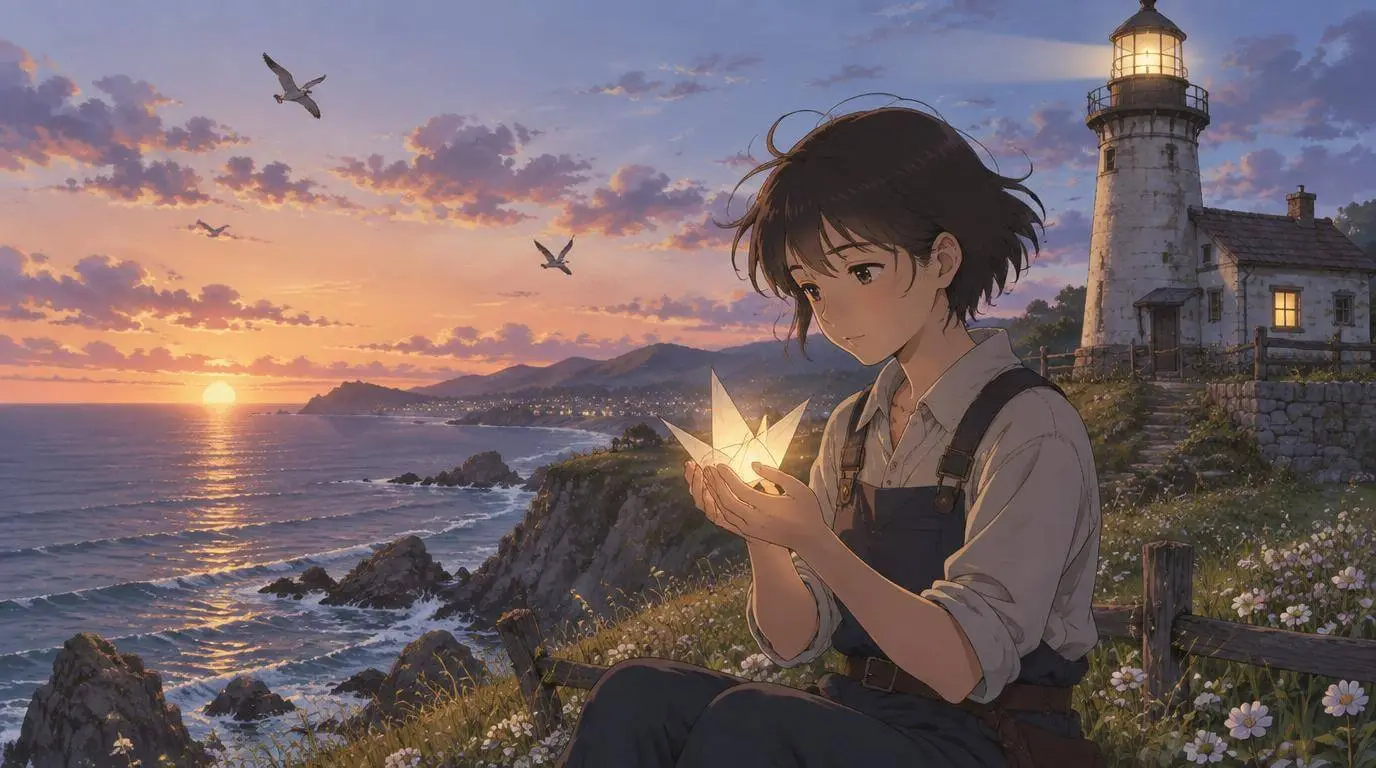
Can AI Really Make a Full Anime Episode?
Yes, but I would not start with a 20-minute episode.
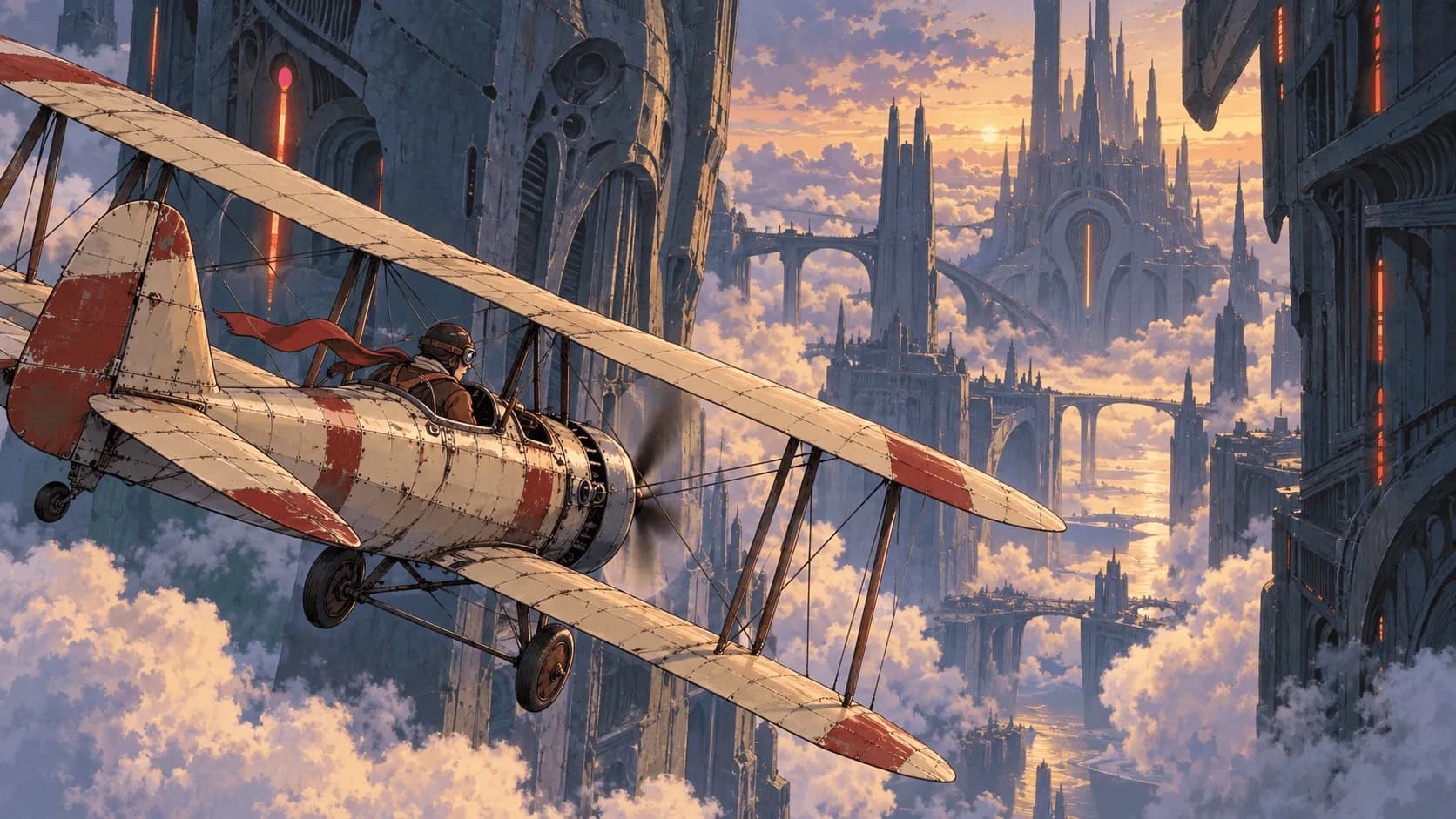
AI can already help with anime-style characters, scenes, prompts, storyboard text, and short video clips. A beginner can now create something that feels like a tiny anime episode instead of a random single shot.
The limit is continuity. Anime depends on the viewer recognizing the same character, following the same location, and understanding why each scene happens. If the process skips planning, the video can look impressive but feel disconnected.
If you only want to test short anime clips first, I also wrote about how to make AI anime for free with Google Flow. This article is more about turning that kind of short-clip energy into a fuller episode workflow.
That is why I like a staged workflow. SoulVid does not ask you to solve every piece at once. It first builds the project summary, then scene details, then assets, then storyboard text, then videos.
For me, that is the difference between "AI made a nice clip" and "this actually feels like a short episode."
Why One Prompt Is Not Enough
One prompt can create a strong image or a short video idea. It usually cannot hold an entire anime episode together.
Here is what tends to go wrong:
- The main character changes face, outfit, or age between scenes.
- The story jumps too fast because every shot tries to be dramatic.
- The setting changes without a reason.
- The AI forgets the ending you wanted.
- The final video feels like separate clips instead of one episode.
So I do not use SoulVid as a magic button. I use it like a guided production board. I let it generate each layer, then I check the layer before moving on.
My SoulVid Workflow for an AI Anime Episode
This is the workflow I would use if I wanted to make a short anime episode with SoulVid and keep it beginner-friendly.
Step 1: Start With One Focused Prompt
In SoulVid, start by describing the episode idea in the prompt box. Keep it clear, not huge. A lot of the later choices can be adjusted inside SoulVid's built-in workflow, so I do not try to solve every detail before the project exists. I only give the system enough direction to understand the character, mood, setting, and ending.
I usually include five things:
- The main character
- The setting
- The conflict
- The mood
- The ending direction
For example:
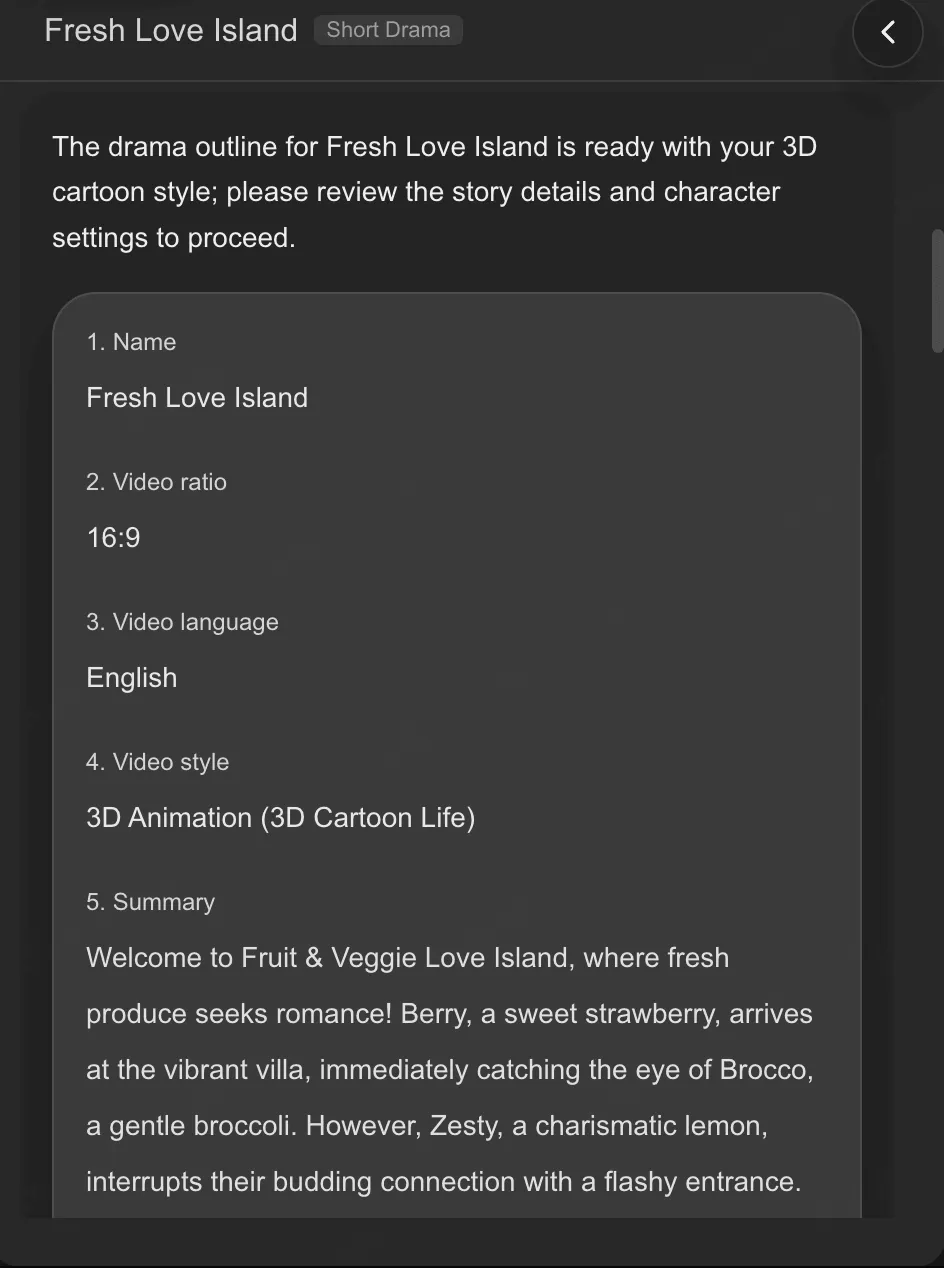
Create a short 2D anime-style episode about a teenage lighthouse keeper who finds a glowing paper crane washed onto the shore. The mood is gentle, magical, and a little bittersweet. The setting is a quiet coastal town at dusk. The story begins at an old lighthouse, moves through a windy cliff path, and ends when the keeper helps a lost star return to the night sky.This is enough for SoulVid to understand the direction. I would not paste a full novel here. The goal is to give the system a clean starting point.
Step 2: Generate and Check the Summary
After the prompt, SoulVid generates the project summary stage. This is where I can check the number of characters, each character's role, and the overall outline. Each character is managed separately, which is important for anime. Having a dedicated character image later makes consistency much easier, and it also helps me judge whether the cast actually fits the episode I want to make.
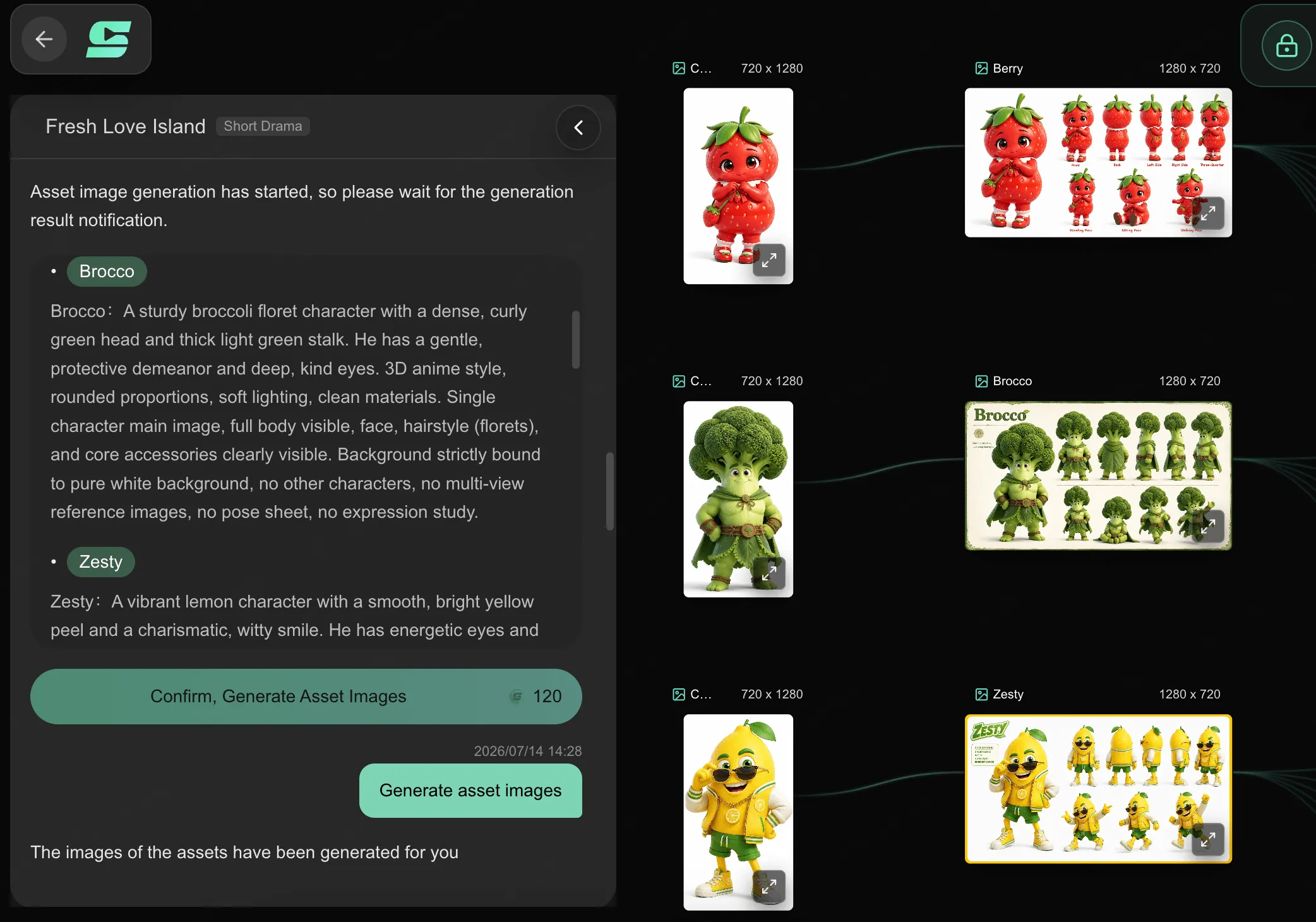
This stage matters more than it looks. It usually includes the project basics:
- Title
- Aspect ratio
- Language
- Style
- Summary
- Character setting
I do not rush past this screen. I check whether the story still says what I meant.
For an anime episode, I mainly look at three things:
- Style: 2D anime should stay 2D anime. If it becomes live action or 3D, fix it early.
- Character setting: the main character should have a clear outfit, age, personality, and visual identity.
- Summary: the ending should still be there. If the ending disappears, the rest of the workflow will drift.
My small rule: if the Summary feels wrong, do not generate Details yet. Fix the direction first.
Step 3: Generate Details and Review the Scenes
Next, SoulVid generates the Details stage.
This is where the project becomes scene-based. Instead of one big idea, you get scene descriptions with things like setting, characters, duration, and content. Once the characters and story direction feel right, I start treating the project scene by scene.
Start an AI anime episode in SoulVid
For the lighthouse example, I would expect something like:
Scene 1: The teenage keeper lights the old lighthouse at dusk.
Scene 2: A glowing paper crane washes onto the shore.
Scene 3: The crane unfolds into a tiny star map.
Scene 4: The keeper follows the map along a windy cliff path.
Scene 5: A small lost star flickers above the dark sea.
Scene 6: The lighthouse beam guides the star back into the sky.
The exact scene list can be different. That is fine. What I care about is whether every scene has a reason to exist.
When reviewing Details, I check:
- Does the order make sense?
- Does each scene move the story forward?
- Are there too many locations?
- Is the ending clear?
- Are the same characters used consistently?
This is where SoulVid is useful. I am not drawing storyboards by hand. I am checking the generated scene plan before spending credits on visuals.
Step 4: Generate Asset Prompts
After the scene details look right, SoulVid can generate asset prompts.
This stage usually separates the visual building blocks into:
- Characters
- Scenes
- Props
For anime, this is where consistency starts. If the character prompt is vague, the final episode will probably drift.
For example, I would want the main character prompt to include stable details:
A 16-year-old lighthouse keeper with short silver-blue hair, a navy raincoat, round brass goggles hanging at the collar, and a calm but curious expression. Keep the same raincoat, hair color, and goggles across all scenes.The scene prompts should also be specific. "Coast" is weaker than "an old lighthouse on a grassy sea cliff at dusk, with warm lantern light and dark blue waves below."
I like this stage because it turns the episode into reusable visual parts. You are not trying to describe the character from scratch in every shot.
Step 5: Generate Asset Images and Replace the Weak Ones
Once the asset prompts look good, generate the asset images.
This is the point where I slow down again. The assets are the visual memory of the project. If the main character image is wrong, the storyboard videos will inherit that problem.
I check:
- Does the character look like the Summary described?
- Does the outfit match the anime episode idea?
- Is the scene image usable as a reference?
- Are important props easy to recognize?
- Would I be okay seeing this design throughout the episode?
If an asset is close but not right, regenerate or replace it before moving on. This is much easier than fixing every storyboard video later.
Step 6: Generate Storyboard Text
After assets are ready, SoulVid generates Storyboard Text.
This is the real bridge between "story plan" and "video clip." The storyboard text tells each shot what to show, which assets to reference, and what visual action should happen.
I treat this step like a final planning check.
Good storyboard text should have:
- One clear visual action per shot
- References to the right character or scene assets
- Camera movement that is not too chaotic
- A clean emotional beat
- No attempt to fit half the episode into one shot
For example, this is focused:
Close-up anime shot of the lighthouse keeper holding a glowing paper crane in both hands. Sea wind moves the raincoat collar. The camera slowly pushes toward the keeper's face as the crane unfolds into a tiny star map.This is too much:
The keeper finds the crane, follows the map, climbs the cliff, saves the star, fixes the lighthouse, and learns the meaning of hope.The second one is not a shot. It is half the episode squeezed into one prompt.
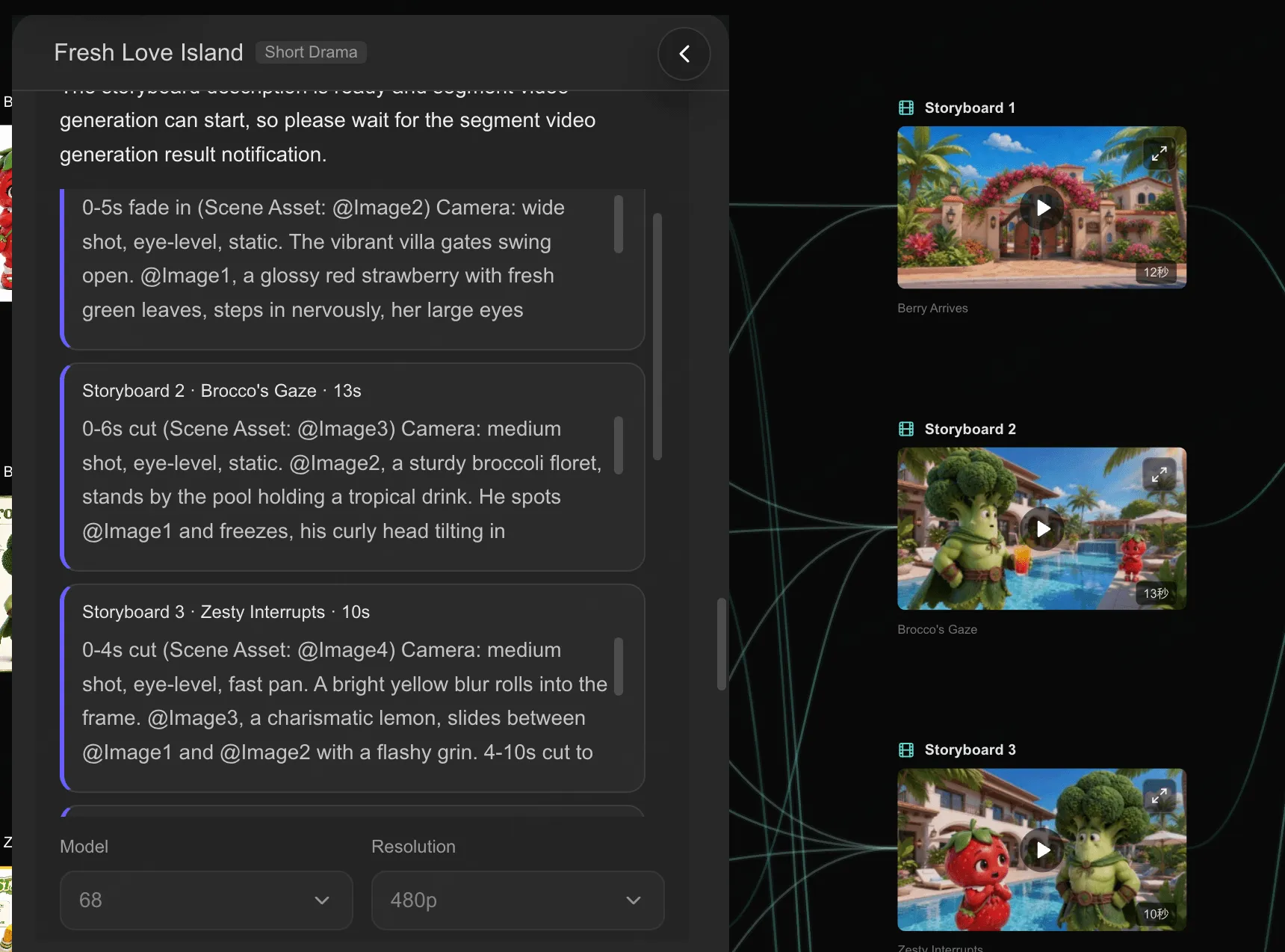
Step 7: Generate Storyboard Videos
When the storyboard text looks right, generate the storyboard videos.
In SoulVid, this is where each storyboard becomes a video clip. You can review the prompt, the asset references, the model, the resolution, and the preview result.
This is my favorite part, but it is also where I try not to get too attached to the first output. Some clips will be good immediately. Some will need a regenerate.
I usually judge each storyboard video with a simple checklist:
- Can I recognize the same character?
- Does the shot match the storyboard text?
- Does the motion feel natural enough?
- Does it connect to the previous and next shot?
- Is there any obvious visual mistake that would distract viewers?
If only one clip is bad, I regenerate that clip. I do not restart the whole project.
That is the advantage of this workflow. The episode is broken into reviewable pieces.
Step 8: Generate the Final Video
When the storyboard videos look good, generate the final product video.
This final stage composes the clips into one video. After it is done, watch the whole thing from start to finish.
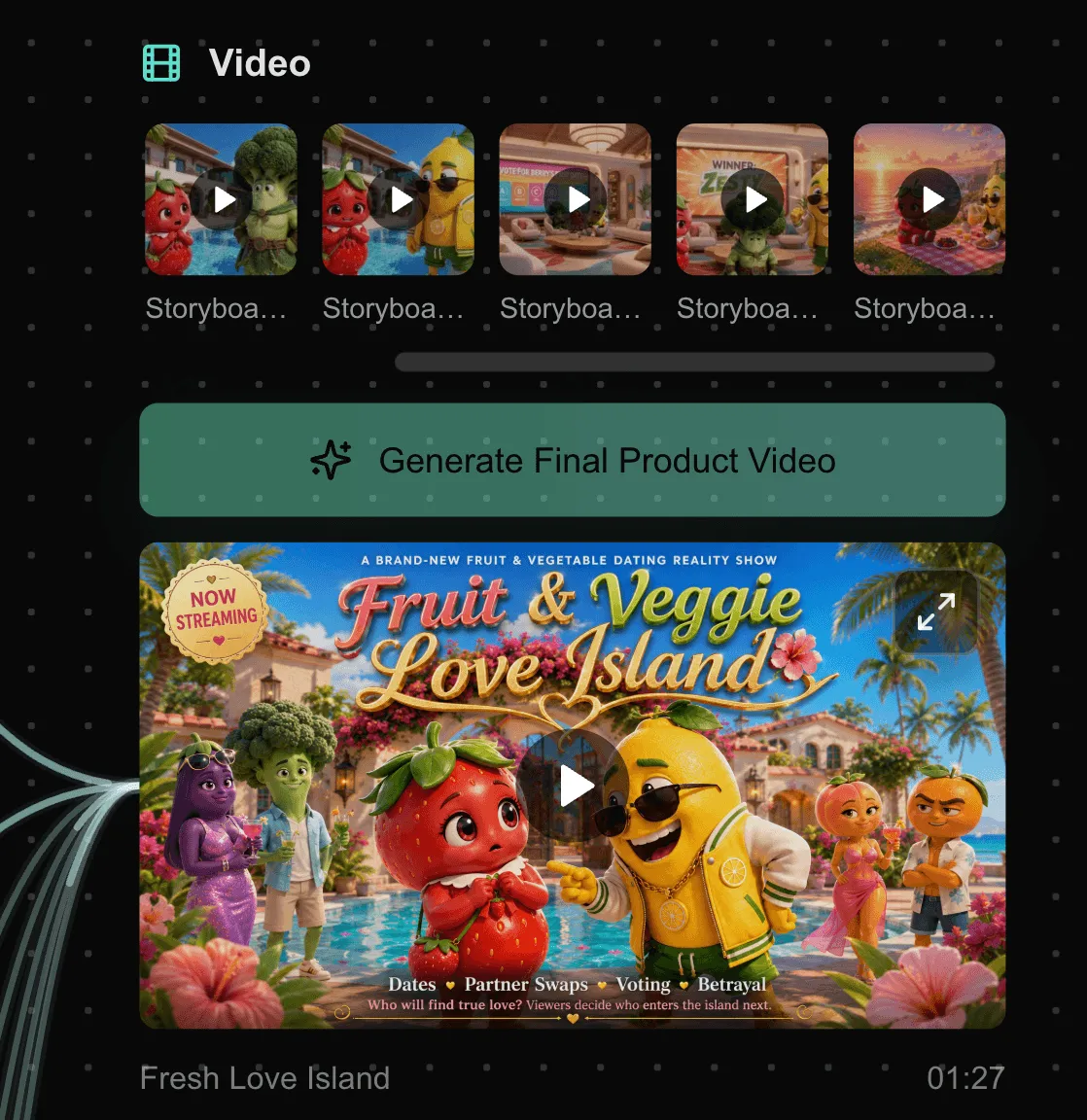
Do not only check whether individual clips look cool. Check whether the episode works.
Ask:
- Can I understand the story without explaining it?
- Does the main character stay recognizable?
- Does the ending feel connected to the beginning?
- Does the pacing feel too rushed or too slow?
- Would I watch another episode in this style?
If the answer is mostly yes, you have something publishable or at least worth improving.
What I Would Do Differently for a Longer Episode
For a first project, I would keep the episode short. A 30- to 90-second anime episode is much easier to control than a 20-minute one.
If I wanted to make a longer episode, I would not try to generate it as one project. I would split it into parts:
- Opening scene
- First conflict
- Middle reveal
- Climax
- Ending scene
Each part can follow the same SoulVid workflow: Summary, Details, Assets, Storyboard Text, Storyboard Videos, Final Video.
Then I would edit the parts together outside or inside a final assembly workflow. That gives more control and less heartbreak.
For a broader narrative workflow beyond anime episodes, the guide on how to make an AI short film uses the same basic idea: keep the story small, control the characters, and build the video in reviewable sections.
Tips for Better AI Anime Results
Keep the first version simple. One main character, one main setting, and one emotional turn are enough.
Make the character design stable before generating storyboard videos. If the face, outfit, or age keeps changing in assets, do not expect the videos to stay consistent.
Use specific visual language:
2D anime style, coastal dusk, warm lighthouse glow, dark blue ocean, soft magical light, emotional close-ups, gentle fantasy mood, smooth camera movement.Do not skip review steps. SoulVid gives you Summary, Details, Assets, Storyboard Text, Storyboard Videos, and Final Video for a reason. Each stage is a chance to catch problems early.
Regenerate small pieces, not everything. If one storyboard video fails, fix that clip. The whole point of the workflow is that you do not have to throw the entire episode away.
If your project is closer to a music-led anime sequence than a dialogue episode, this tutorial on how to make an anime music video with AI is a better fit.
FAQ
Can AI make a 20-minute anime episode?
Yes, but I would not recommend starting there. A 20-minute anime episode needs strong scene control, consistent characters, and careful pacing. Start with a short episode, learn the workflow, then scale up.
Can SoulVid create anime-style video clips?
Yes. SoulVid can turn prompts, generated assets, and storyboard text into anime-style video clips. The better your Summary, Details, and Assets are, the better the storyboard videos usually become.
Is SoulVid a one-click anime episode generator?
Not in the way people imagine. The stronger workflow is staged: prompt, summary, details, asset prompts, asset images, storyboard text, storyboard videos, and final video. You still review and guide the project.
How do I keep AI anime characters consistent?
Start with a clear character setting in the Summary stage, then check the character asset prompt and asset image before generating storyboard videos. If the asset is wrong, fix it before video generation.
What is the easiest format for beginners?
Make a short anime episode with one character, one setting, and one simple conflict. Mystery, emotional slice-of-life, and short fantasy encounters work well because they do not require too many locations or action scenes.
Final Verdict
AI can make a full anime episode, but the best results come from a workflow, not a miracle prompt.
For SoulVid, the workflow I would actually use is:
Prompt -> Summary -> Details -> Asset Prompts -> Asset Images -> Storyboard Text -> Storyboard Videos -> Final VideoThat process feels much closer to how a semi-serious creator works: plan the idea, check the story, lock the visual assets, generate the storyboard clips, then compose the final video.
If you like making AI videos for fun but still want the result to feel watchable, this is the approach I would start with.