Your Udio song is finished. Now it needs somewhere to go. This guide shows how to make a music video for an Udio song without filming yourself or learning a complicated editing program. You will lock the final track, choose a visual direction, and turn the song into connected scenes with a conversational SoulVid workflow.
Udio gives you the audio; it does not decide who appears on screen, how the chorus should open up, or how one scene should lead into the next. You do not need a filmmaker's vocabulary to solve that. Start with one visual idea and a short section you can actually review, then expand it for YouTube, Shorts, TikTok, or Reels once the direction works.
- Start with
- A finished Udio song and its final audio file
- Choose
- One MV type, visual style, and recurring idea
- Generate
- A summary, storyboard, and connected clips in SoulVid
- Finish
- A short, platform-ready music video
How to Make a Music Video for an Udio Song
Download and lock your Udio song
Start with the version you actually want to use. Udio songs can have multiple generations, edits, or extensions, and a small timing change can move every visual cue later in the video.
Use the audio export option currently available in your Udio account, then keep these details nearby:
- The final audio file and its exact duration
- The point where the intro, verse, chorus, bridge, and outro begin
- The lyrics, or a short note about the mood and energy of each section
- The plan and usage terms that apply to the song before you publish it
You do not need to turn the whole track into a video on the first try. A 15- to 30-second chorus or hook is often enough to test the idea. If the audio changes later, upload the updated file and review the timings before generating more scenes.
The same audio-first handoff is useful whether your song comes from Udio, Suno, or another music tool. If you want a Suno-specific example, see the Suno-to-MV workflow before you start.
Decide what kind of MV you want
Before writing a prompt, decide what the viewer should remember. You can make a story, a performance, a lyric-led video, or a mood-focused visual. None of them is automatically better; the right choice depends on the song.
| Your song feels like | A good visual direction | A simple starting idea |
|---|---|---|
| Dreamy indie pop | Soft cinematic story | A singer follows sunlight through an empty house |
| Dark electronic | Neon performance or narrative | One character crosses a rainy city as the lights change with the chorus |
| Lo-fi or mellow beats | Limited-motion loop | A quiet room, a rainy window, and a few repeating movements |
| Upbeat hip-hop | Energetic performance | Bold street colors, confident movement, and low-angle camera work |
| Acoustic or folk | Warm human story | A road trip, a small room, or a close-up performance in natural light |
| Dance pop | Clean performance MV | A simple studio, strong color blocks, and cuts that open up on the hook |
Then make three quick decisions:
- Format: 16:9 for YouTube, 9:16 for Shorts, TikTok, and Reels, or 1:1 for a square post.
- Length: Start with one strong section before planning the full song.
- Visual anchor: Keep one character, place, object, or color returning across the video.
One recurring idea is enough. A red scarf, an old train ticket, a mirror, or a single neon sign can connect several shots better than a new concept in every scene. For a quick way to map intro, verse, chorus, bridge, and outro before you write, use this music video storyboard guide.
Generate the video in SoulVid
Open the SoulVid AI Music Video Generator and upload the final Udio audio. MP3 or WAV is a straightforward starting point, and the workflow also accepts other common audio formats. You can start with an existing track like this one, or begin with AI-generated music inside SoulVid; this example stays focused on the Udio upload.
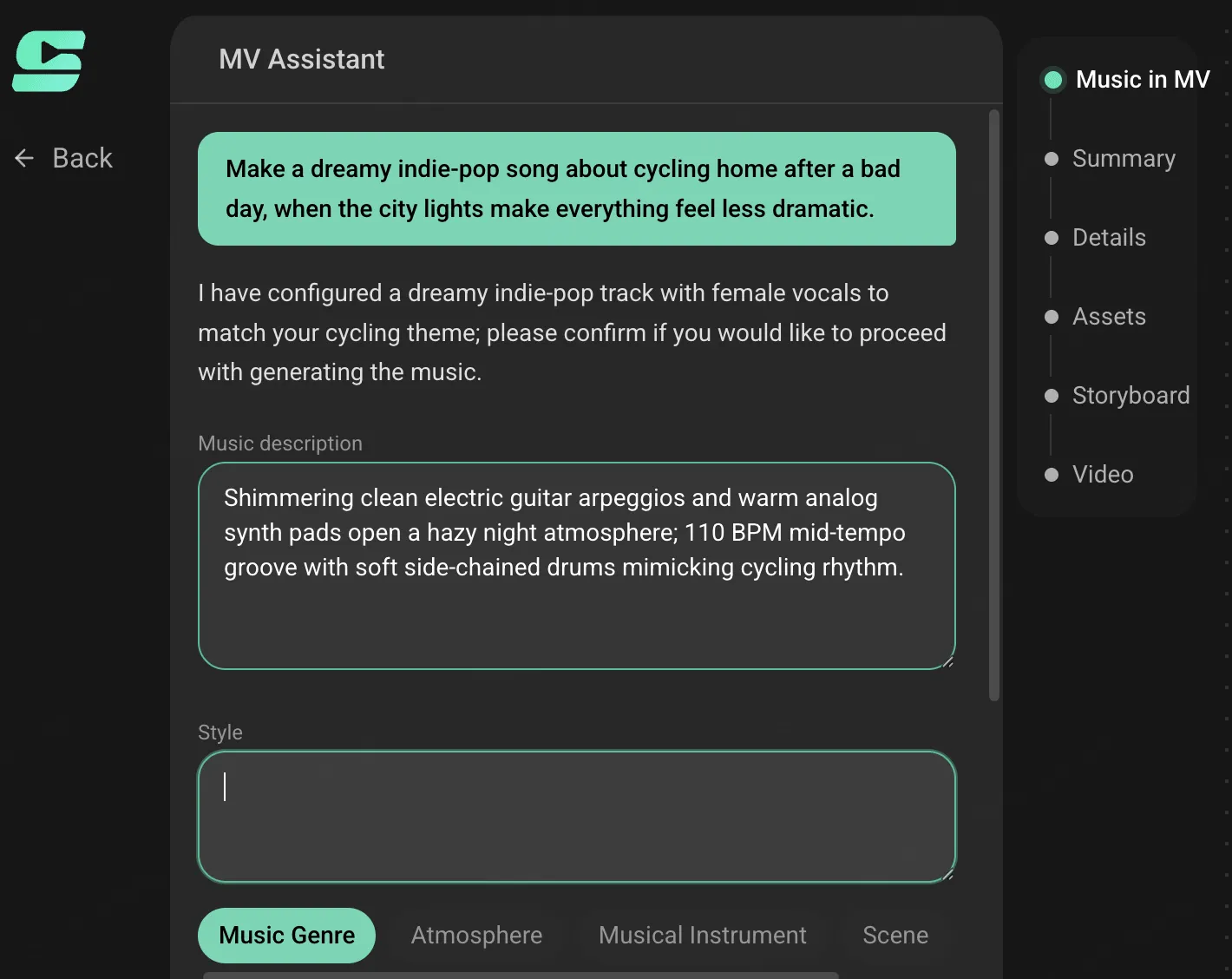
Describe the song and the visual idea in ordinary language: what the song feels like, who or what appears, where the video takes place, and what should change when the chorus arrives. SoulVid uses the uploaded track plus that brief to organize the song's mood and structure into a visual summary, storyboarded scenes, and clip directions. That song-first planning is the important difference from asking a generic video model for a pile of unrelated clips.
In practical terms, this gives you five useful controls:
- Song-first input: Keep the actual Udio track at the center of the project instead of matching visuals to a placeholder beat.
- Chat-based direction: Describe mood, lyrics, camera language, characters, and shot energy in plain language.
- Storyboarded scenes: Turn the track's structure into an ordered visual plan before you spend credits on every clip.
- Continuity: Carry the same characters, visual motifs, lyric imagery, and environments across separate sections.
- Flexible delivery: Refine framing and prepare the same idea for vertical social formats or a widescreen release.
The useful part of the conversational workflow is that you do not have to get a perfect prompt on the first try. Review the summary and storyboard, then ask for one focused change at a time:
- Keep the approved character and outfit, but change the second chorus scene from a street to a rooftop.
- Keep the blue-and-red palette and scene order, but make the chorus wider and more energetic.
- Replace only the close-up with a slow tracking shot; keep the location, lighting, and scarf.
- Carry the same face, hairstyle, clothing, and recurring symbol into the next scene.
This is easier to follow than rebuilding a project whenever one detail feels wrong. Start with the hook or chorus, review the direction, and extend the approved visual language to more of the song only after the core idea works. It keeps the process approachable, preserves continuity between scenes, and makes credit use easier to control.
The following is a copy-ready first message for SoulVid after the audio is uploaded. It is intentionally short: the goal is to give the conversation a clear starting direction, then let the summary and storyboard reveal what needs refining.
Copy-ready first message for SoulVid
I uploaded my finished Udio track. Help me create a 30-second 9:16 music video for the chorus first.The song is dark electronic: restrained in the verse, then wider and more energetic in the chorus. Follow one singer with short dark hair, a charcoal jacket, and a red scarf through a rain-soaked city at night. Use cyan reflections with small red accents. Keep the same face, outfit, scarf, and visual language across every scene.
Please turn this into a concise visual summary and a connected storyboard before generating clips. Make the chorus the visual high point and end on the red scarf on an empty train seat.
This is a conversation starter, not a rigid command for a standalone text-to-video box. Once SoulVid returns the visual direction, keep the parts that work and revise the part that does not. For example, you can ask it to make the intro quieter, change only one chorus shot, or prepare a short vertical teaser while preserving the approved character and visual language.
Give Your Udio Song a Visual Direction
Upload the track, describe the mood in chat, and build connected MV scenes without starting with a complicated timeline.
Try SoulVid AI Music Video GeneratorTips for Generating a Better Udio Music Video
- Start with the hook. Test the chorus or most memorable section before committing to a full-length MV.
- Match movement to energy. Keep verses calmer and let the chorus earn a wider frame, faster action, or a stronger lighting change. SoulVid can use those section-level directions when it turns the track into storyboarded scenes.
- Do not illustrate every lyric. Choose one or two visual symbols and let them repeat so the video feels coherent.
- Describe actions clearly. “The camera slowly tracks behind the singer” is more useful than “make it cinematic.”
- Change one thing at a time. Ask for a new camera move or location while keeping the approved character, palette, and scene order.
- Review before extending. Check the face, clothing, props, framing, and audio timing before spending more credits. This character consistency guide has a deeper checklist for recurring characters.
- Choose the crop early. Keep faces, lyrics, and important props inside the safe area for the final platform.
FAQ
Can I make a music video from a song created in Udio?
Do I need to film anything myself?
Can SoulVid make a full-length video from an Udio song?
Do I need to write a complicated prompt?
Is a music video the same as a music visualizer?
Conclusion
You do not need a huge concept to make an Udio song feel visual. Lock the exact track, choose one direction that fits its mood, and start with a short section you can actually review. SoulVid keeps the audio, visual brief, storyboard, and revisions in one conversational workflow, so you can shape the MV as you go instead of solving everything before you begin.
Turn Your Finished Song into an MV
Start with one Udio track and see how far a clear visual idea can take it.
Create a Music Video with SoulVid