If you are searching for is Vidnoz AI good, you have probably already seen its avatars, face swap tools, image-to-video feature, and that long row of free utilities. Here, though, we are only testing one slice: the Vidnoz AI music video generator. Can it turn an existing song into a real music video? Is the workflow simple? And how far can the free version actually get?
In August 2026, we used Vidnoz's official sample track, Spooky Night.mp3, selected the default male singer, chose the Dramatic mood, kept the 16:9 format, and walked through the full upload, singer, style, aspect-ratio, and generation flow. The good news: you can start a free generation without logging in. The awkward news: after more than five minutes, progress was still stuck at 75%. So this Vidnoz AI review separates the interface and workflow we personally verified from Vidnoz's own claims about finished output. We are not going to pass off official sample videos as our own test result.
One quick disclosure: this article is published by SoulVid, which is also a music video platform compared later in the piece. We will be direct about which workflow fits which creator instead of pretending we have no product perspective.
Quick Verdict: Is the Vidnoz AI Music Video Generator Worth Using?
It is worth a free test, but do not schedule your release for tonight. Vidnoz keeps the early workflow genuinely simple: add a song, pick a singer, choose up to three genres or moods, select horizontal or vertical format, then generate. It is a friendly entry point for beginners who want a quick singer-performance music video, release teaser, or short social clip.
The tradeoff is that most creative decisions are handed to the automated system. You can choose a style, but you do not see a storyboard. You can switch aspect ratio, but you cannot plan each shot first. You can regenerate, but there is no clear scene-level revision or batch candidate workflow. Since our free sample did not finish within the waiting window, we cannot score lip sync, audio-visual timing, or final image quality.
| Review area | What we observed | Takeaway |
|---|---|---|
| Learning curve | Three-step interface, no editing skills required | Very easy |
| Song input | Five common formats, with a 50MB limit shown on the page | Practical |
| Style choices | 17 genres and 15 moods, with up to 3 selections | Broad but preset-driven |
| Social formats | 16:9 and 9:16 are available | Covers the basics |
| Generation speed | Still at 75% after more than 5 minutes | Slow in this test |
| Final quality and sync | Free sample did not complete within our waiting window | Not verified |
| Story control | No visible storyboard or shot-by-shot editing | Limited |
What Is the Vidnoz AI Music Video Generator?
The Vidnoz AI music video generator is not a music generator that creates a song from a prompt. It is also not the same as Vidnoz's digital presenter feature for reading scripts. Its starting point is an existing audio file. The system then analyzes the music, applies a singer and visual direction, and generates a music video that mixes performance footage with B-roll.
The main controls on Vidnoz's Traditional Chinese page include:
- Upload MP3, WAV, M4A, OGG, or FLAC.
- Choose a preset singer, or upload a photo to create a custom singer.
- Pick up to three directions from music genres or moods.
- Output in 16:9 or 9:16.
- Turn on Singer Only to remove B-roll video material.
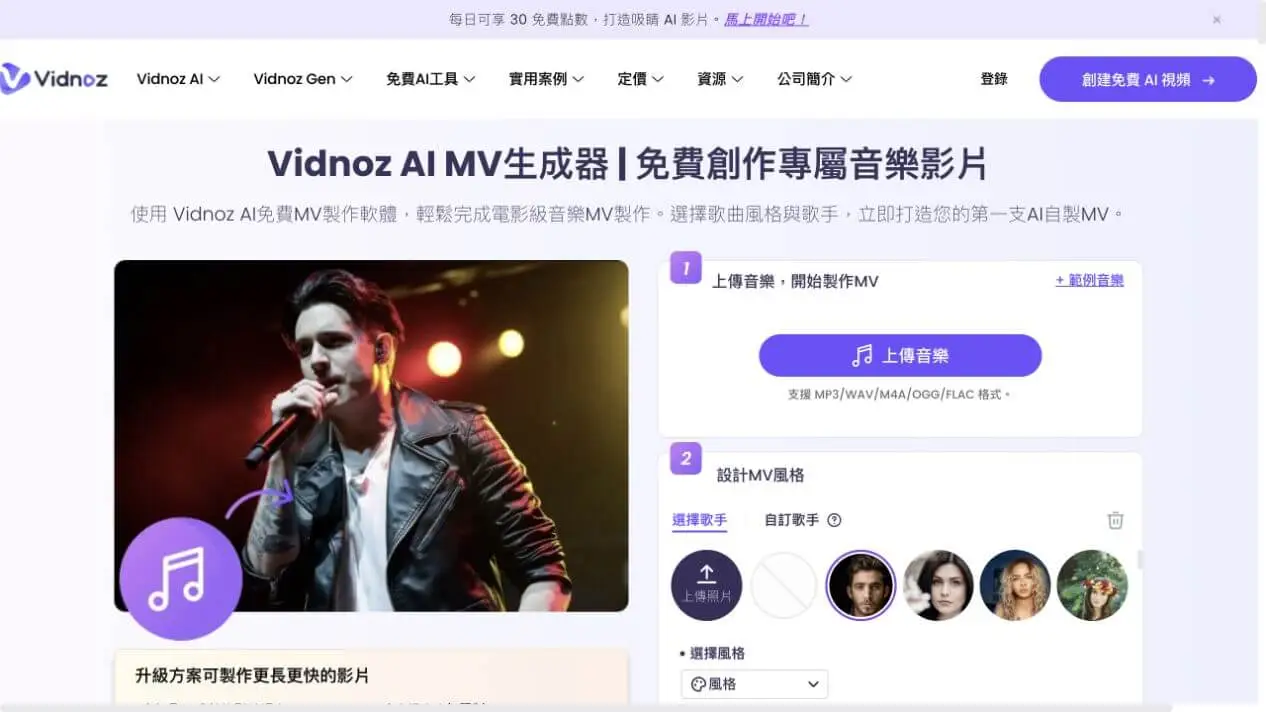
The positioning is clear: you are not sitting in the director's chair planning every shot. You choose a broad direction and let the platform handle the edit. That is friendly if you hate blank timelines. If you already have a complete story in your head, it can feel like handing your script to a very fast editor who does not take many meetings.
How We Tested Vidnoz AI
We used the official sample track so we would not upload private material and so readers could reproduce the same entry point. We did not log in, buy a plan, or use Vidnoz's pre-made demo videos as our test output.
- Loaded the official sample track, Spooky Night.mp3.
- Kept the default male singer and did not upload a custom photo.
- Selected Dramatic from the mood menu.
- Kept 16:9 and left Singer Only turned off so the system could include B-roll.
- Clicked generate and recorded the progress, login behavior, and waiting state.
This method lets us verify the setup difficulty, depth of controls, and generation speed. Because the task did not finish within our waiting window, it does not let us verify whether the final lip movements truly match the lyrics, whether transitions land on the beat, or what the download quality looks like. That limitation is not a footnote. It is part of the conclusion of this Vidnoz AI music video generator review.
How to Use Vidnoz AI
Step 1: Load a Song
After clicking the sample music option, the page loaded Spooky Night.mp3 directly and did not ask us to create an account first. If you use your own track, Vidnoz says the tool supports MP3, WAV, M4A, OGG, and FLAC, with a 50MB limit per file. Most exports from common DAWs or AI music platforms should fit those requirements.
If your song comes from Suno, read this Suno music video workflow first so you can prepare the audio file, lyrics, and chorus section before deciding whether to make a full MV or a short social cut.
Step 2: Choose a Singer
The interface provides a row of preset characters, and it also lets you switch to a custom singer by uploading a photo. That is convenient for independent musicians who do not want to film a real performance. Before uploading a photo, though, confirm that you have the right to use the person's likeness. The setup screen alone cannot prove the character will stay consistent across every shot; that can only be judged from a completed output.
Step 3: Choose a Genre or Mood
The genre menu includes 17 directions: Pop, Hip-Hop, Rock, EDM, Jazz, Country, Classical, Reggae, Metal, Folk, Blues, Funk, New Age, World Music, Latin Music, R&B, and Synthwave. You can choose up to three at a time.
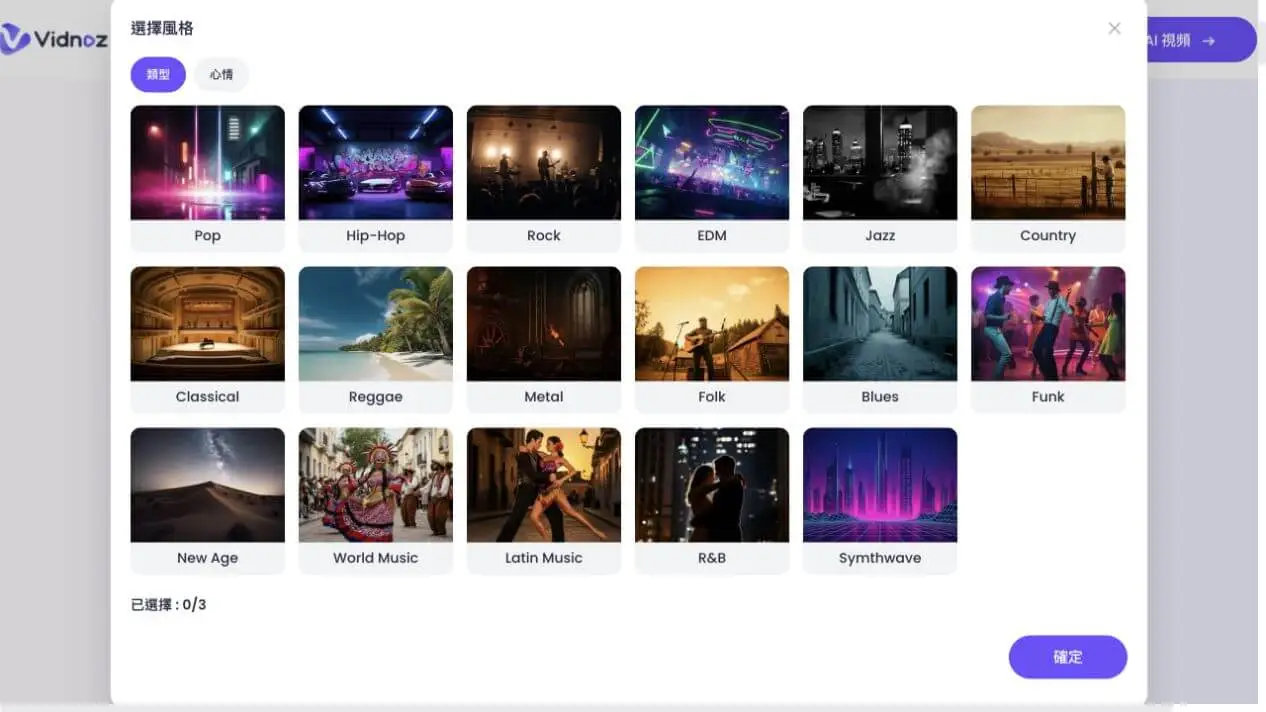
The mood menu adds Happy, Sad, Inspiring, Romantic, Calm, Energetic, Epic, Dark, Dramatic, Hopeful, Tense, Angry, Mysterious, Fun, and Chill. This is closer to how musicians think than only choosing "anime" or "realistic," but it is still a preset menu, not a free-form director prompt where you can describe characters, scenes, and plot beats.
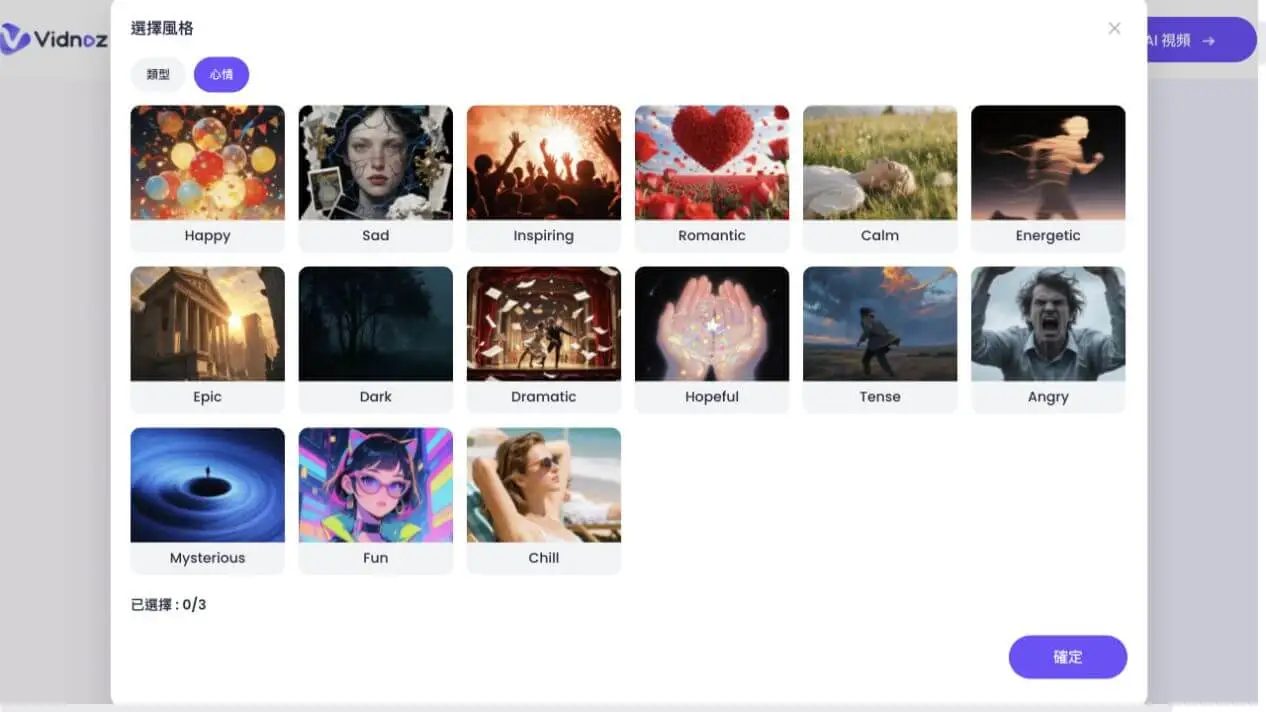
Step 4: Choose Aspect Ratio and Singer Mode
16:9 fits a widescreen YouTube music video. 9:16 fits TikTok, Instagram Reels, and YouTube Shorts. Turning on Singer Only removes B-roll and makes the result closer to a solo performance video. The switch is easy to understand, but there is no 1:1 option, and we did not see a vertical safe-area preview or key-subject preview before generation.
Step 5: Generate the Video
After we clicked Generate Video, the page immediately moved into a percentage progress state without requiring login. The first half advanced fairly quickly, then the second half slowed down sharply. After more than five minutes, it was still at 75%. The page did not show an error, but we ended the wait instead of assuming it was about to finish.
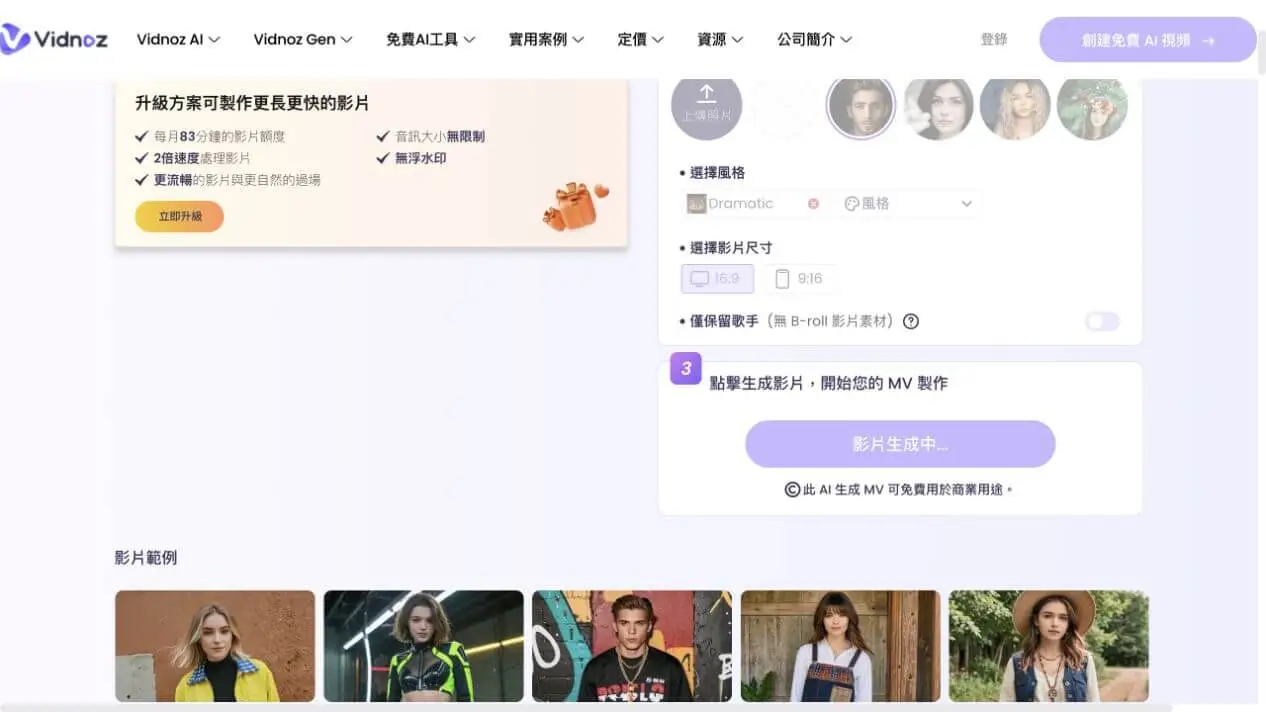
Test Result: The Interface Is Fast, the Video Was Not
The clearest upside from our test is the low starting cost. From opening the page to starting generation, there was no registration, no blank editing timeline, and no need to write a long prompt. Singer, style, aspect ratio, and B-roll settings all live in the same panel, so beginners are unlikely to get lost.
But "one click" does not mean "instant." The free sample still had not completed after more than five minutes, which means creators should not treat it as a real-time preview tool. If every style change means waiting again, you also need to know whether it consumes credits and whether you can keep a previous version you liked. Those details were not especially clear before generation.
Because we did not receive a final output, we are not evaluating these items:
- Whether the singer's lip movements truly follow the lyrics.
- Whether transitions land accurately on drum hits, drops, or chorus changes.
- Whether the B-roll matches the meaning of the song instead of only the mood.
- Whether the character's face, hands, and clothing stay stable across shots.
- What the free download resolution and watermark actually look like.
That is not dodging the review. It is the basic boundary of a review: if we did not see the result, we do not score it.
Is Vidnoz Good for TikTok, Reels, and Shorts?
Vidnoz offers native 9:16 output, which is a clear social-media advantage. At minimum, creators do not need to make a horizontal video first and then crop away the singer's face and important action. Choosing 16:9 or 9:16 before generation is also more sensible than fixing framing after export.
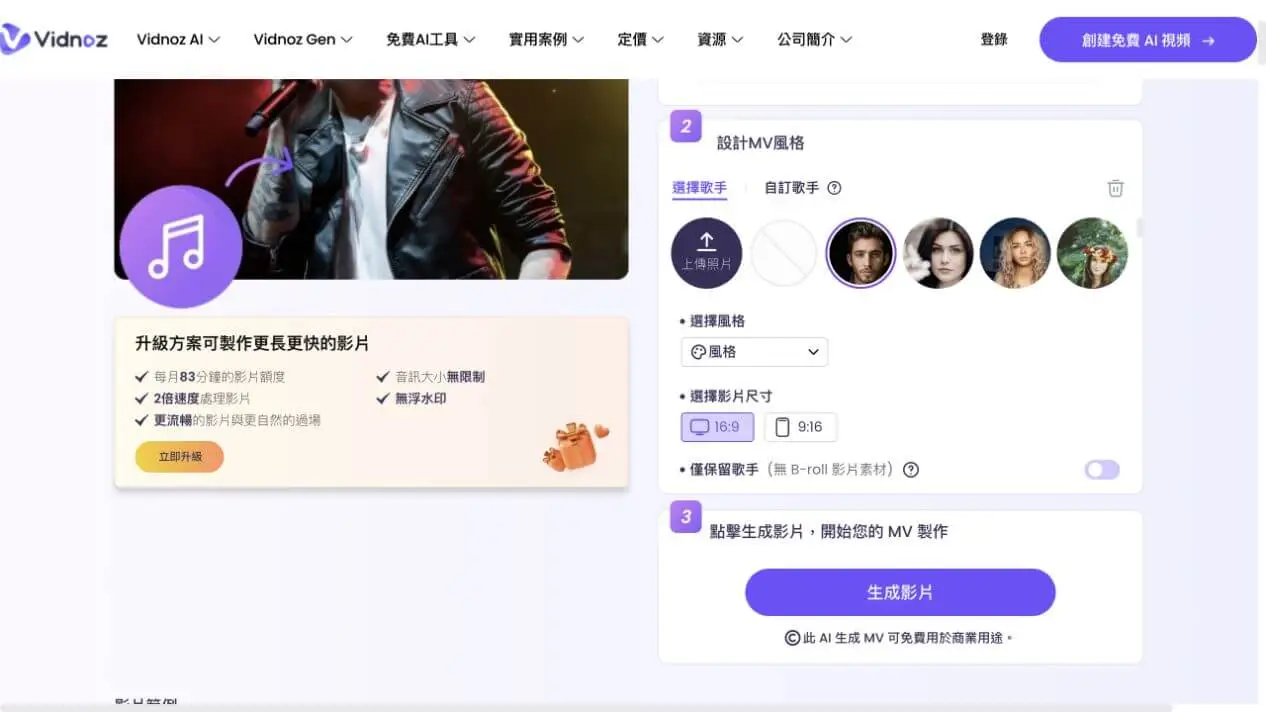
Still, a social-ready workflow is more than a vertical canvas. Real social production also needs a strong first-three-second hook, multiple candidate versions, consistent characters, reuse between short and full versions, and the ability to replace only weaker shots. For a broader comparison of that workflow, see our AI music video platform comparison for social media.
So our judgment is: Vidnoz's aspect-ratio choices fit social output, but the visible controls are better suited to one-off automatic music videos than to managing a full release campaign.
Pros of the Vidnoz AI Music Video Generator
- The entry point is direct. You do not need to enter a complicated workspace before loading a song.
- The free sample can start. In our test, we did not log in and still reached the generation task.
- The choices are music-oriented. Genres and moods feel more relevant to song creation than generic video templates.
- Preset and custom singers both exist. There is a path for quick tests and for building a personal performance direction.
- Horizontal and vertical formats are chosen before generation. The basic needs of YouTube and short-form video are covered.
- Singer Only is easy to understand. If you do not want B-roll, you do not need to delete it section by section in an editor.
- The official page clearly mentions commercial use. You still need the rights to any song and likeness materials you upload, and you should review the latest plan terms before publishing.
Limitations of the Vidnoz AI Music Video Generator
- Generation was slow in our test. It still had not completed after more than five minutes, which interrupts quick idea testing.
- There is no visible storyboard. Before generation, you cannot see scene order, shot purpose, or how song sections map to visuals.
- Control is mostly preset-based. There are many genres and moods, but you cannot directly say, "Keep this character and make the chorus brighter."
- There is no batch candidate review. If you want to compare three openings, you may need to generate and wait one at a time.
- Scene-level revision is unclear. If one shot fails, there is no obvious way to redo only that scene.
- Free limits are not centralized. The page mentions commercial use, watermark-free upgrades, and longer limits, but the real download rules still need to be confirmed at the completed-output stage.
In short, Vidnoz is good at deciding a direction for you quickly, but it may not be as eager to listen when the director wants to change one scene.
Is Vidnoz AI Free? Pricing and Upgrade Limits
The free entry is real: we were able to load the official song, choose settings, and start generation without logging in. The top of the page showed daily free credits, and the tool area stated that generated MVs can be used for commercial purposes.
But "free to start" is not the same as "free to finish a publishable MV." The upgrade prompt listed these as paid advantages:
- Longer video allowance.
- Unlimited audio size.
- 2x processing speed.
- No watermark.
- Smoother video and more natural transitions.
So when checking Vidnoz AI pricing, do not only look at the monthly plan price. First confirm whether your song can finish in the free mode, whether the output has a watermark, whether the resolution is usable, and how regeneration counts against your allowance if you are not happy with the result. Prices and rules can change, and those delivery conditions matter more than a pricing table that may go stale.
Who Is Vidnoz Best For?
Better fit:
- Independent musicians with a finished song who want to quickly test singer-performance visuals.
- Beginners who do not edit video and do not want to face a blank timeline.
- Creators who need a 9:16 release teaser, TikTok, or Reels clip.
- Users willing to accept preset genres and moods while the system decides the shots.
- Anyone who wants a free first check of whether a song works with a human or virtual singer.
May not be the best fit:
- Creators who already have a full story, character setup, and shot requirements.
- Teams that need to generate several candidates at once and choose quickly.
- Users who want to revise one scene instead of regenerating the whole video.
- Release campaigns that need a character to stay consistent across several social posts.
- Tight deadlines where generation-speed swings are a problem.
If You Want a Story-Led MV, How Is SoulVid Different?
Vidnoz's strength is sending a song into an automatic MV workflow quickly. The SoulVid AI music video generator is closer to a creative platform you can keep talking to. You can discuss the song, lyrics, characters, and story first, then move into an editable storyboard instead of pressing generate and only then discovering what the system planned.
| Workflow | Vidnoz | SoulVid |
|---|---|---|
| Starting point | Upload a song, choose singer and style | Song, lyrics, story, or a single idea |
| Control method | Preset genres, moods, and aspect ratios | Keep adjusting in everyday language |
| Structure | Automatically generates a full MV | Plans an editable storyboard first |
| Candidates | Generate one after another | Generate batches of options for easier selection |
| Revision | Scene-level editing path is unclear | Redo a single scene |
| Best for | Fast singer-performance MVs | Story-led MVs and ongoing social campaigns |
If you are still comparing tool positioning, our AI music video generator comparison is a useful next read. If your priority is turning a song into planned shots before deciding what to generate, this AI storyboard guide will help more.
Final Verdict: Is Vidnoz AI Good?
The first half of the Vidnoz AI music video generator workflow is good: the entry point is simple, the terminology is light, there are plenty of genre and mood choices, and 9:16 is supported. For creators who only want to turn a song into a singer-performance short, it is worth a free try.
The concern appears after clicking generate. In our test, the official sample still sat at 75% after more than five minutes, so we cannot confirm the finished lip sync, beat timing, image quality, or watermark. For creators who need to try several directions, the waiting cost and lack of obvious scene-level revision may matter more than the easy setup.
The most practical path is to test your own chorus for free first. If the result works, then consider upgrading. If you already know you need story, multiple candidates, and shot-by-shot control, start with a complete AI music video workflow and choose the platform that fits your creative process.