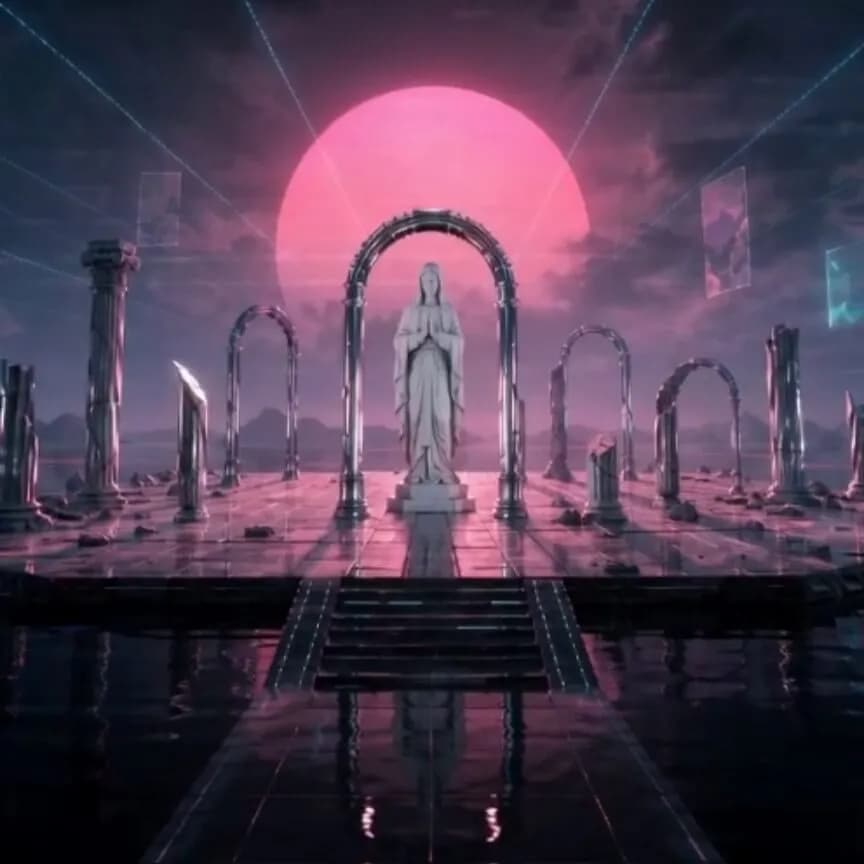
A good animated album cover does not need to behave like a miniature music video. It needs one memorable image, a controlled motion system, and an ending that does not break the spell. To test that idea, I built Marble Signal: a postmodern vaporwave cover led by a white marble statue, then developed it as a quiet loop, a layered parallax scene, and a 15-second release teaser.
This guide shows how to animate an album cover with AI without letting the model redesign the artwork in every frame. You can follow the full SoulVid workflow or lift the prompts for another image-to-video tool.
- Release
- Marble Signal, a fictional ambient vaporwave single
- Source
- One square postmodern cover with a locked marble statue
- Directions
- Ambient loop, layered parallax, and narrative teaser
- Deliverables
- Eight-second preview loop and a 15-second promo plan
Quick Answer: What Is the Best Way to Animate Album Art?
Start with the finished high-resolution cover, decide which elements must never change, and animate only two or three secondary layers. For most releases, the safest motion comes from light, atmospheric texture, reflections, particles, or background depth rather than from moving the main face, hands, typography, or logo.
Use a six-second ambient loop when the artwork already has a strong focal point. Use layered parallax when the foreground, subject, and background can be separated cleanly. Use a 10-15 second narrative teaser when the release needs a reveal for Reels, TikTok, Shorts, or a launch post.
| Output | Best use | Motion budget | Main risk |
|---|---|---|---|
| Sacred Static | Streaming loop and profile visual | Light, reflection, clouds, analog noise | The seam becomes visible |
| Digital Procession | Social post and visualizer | Foreground/background parallax and a slow push | Flat layers look like a slideshow |
| The Signal Opens | Release announcement and teaser | Three timed visual beats | The model invents new objects or changes the cover |
The Marble Signal Cover and Its Three Motion Directions
The source world is deliberately recognizable. A white marble statue of the Virgin Mary stands on a geometric plaza floating above a black reflective sea. Chrome arches and broken classical columns surround her. A cyan perspective grid, faded magenta sun, translucent panels, distant clouds, and restrained VHS noise place the scene somewhere between sacred iconography and a late-night digital broadcast.
There are no living people or additional figures. The statue is the visual identity of the release, so her face, hands, robe folds, pose, scale, and position remain locked. Motion belongs to the world around her.
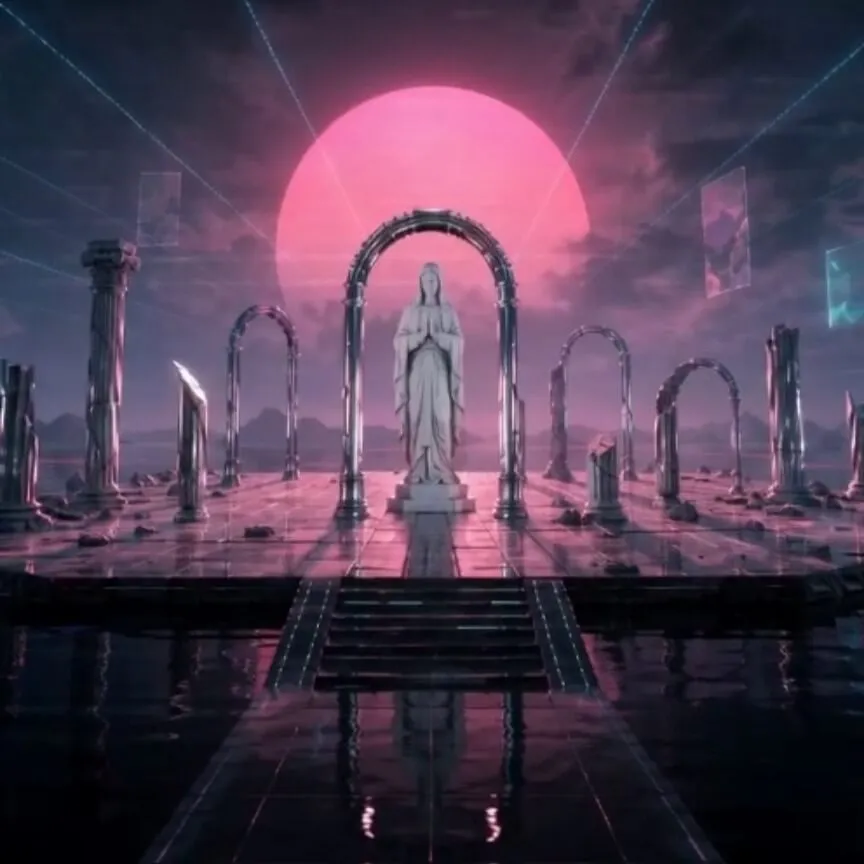
Sacred Static: A Six-Second Ambient Loop
This is the closest extension of the original art. The camera remains locked. The black sea reflection breathes softly, clouds move almost imperceptibly, the cyan grid pulses once, and VHS texture drifts without covering the statue. The final state returns to the first.
Digital Procession: Layered Depth and Parallax
The statue stays centered while the closest column fragments move a little faster than the distant sun and grid. A slow camera push creates depth without turning the statue or changing her anatomy. This version feels more active in a feed but still reads as the same cover.
The Signal Opens: A 15-Second Teaser
The teaser uses three beats. The image begins almost still, a gentle parallax push reveals the depth of the plaza, and a narrow cyan line opens behind the statue before the composition moves back toward its starting balance. It has a small event, but not a new plot.
How to Animate an Album Cover with SoulVid
SoulVid is useful here because it treats the cover as a small visual production rather than a single motion request. The workspace keeps the brief, music, format, assets, shot descriptions, storyboard, and generated clips visible. That makes it easier to compare directions and keep the cover identity aligned across every video variation.
Write a Brief That Separates Identity from Motion
The first prompt should name the visual anchors and the allowed movement separately. This is the full brief used for Marble Signal:
Create a 15-second postmodern vaporwave album-cover animation titled “Marble Signal”. The only subject is a white marble statue of the Virgin Mary, standing on a surreal plaza floating above a black reflective sea. Surround her with chrome arches, broken classical columns, a cyan perspective grid, a faded magenta sun, translucent geometric panels, distant clouds, and restrained VHS scan-line interference.No living people, no extra figures, no text, and no logos. Keep the statue’s face, hands, robe folds, pose, proportions, scale, and position completely unchanged in every shot. Motion should come from light, reflections, slow clouds, distant geometric layers, and analog noise.
Begin almost still. Introduce gentle parallax and a slow camera push. Then let a narrow cyan signal line open behind the statue before the scene returns toward its opening composition. Mood: sacred, uncanny, elegant, and postmodern, not horror. Compose the key art as a square album cover with enough centered safe area for a vertical promotional crop. Use clean cinematic 3D realism.
This phrasing gives the model two lists: what defines the release and what is allowed to move. Vague instructions such as “make it dynamic” do not provide that boundary.
Turn This Brief into an Editable Visual Plan
Paste the Marble Signal brief into SoulVid, then review the music, format, assets, and storyboard before generating video.
Start This Workflow in SoulVid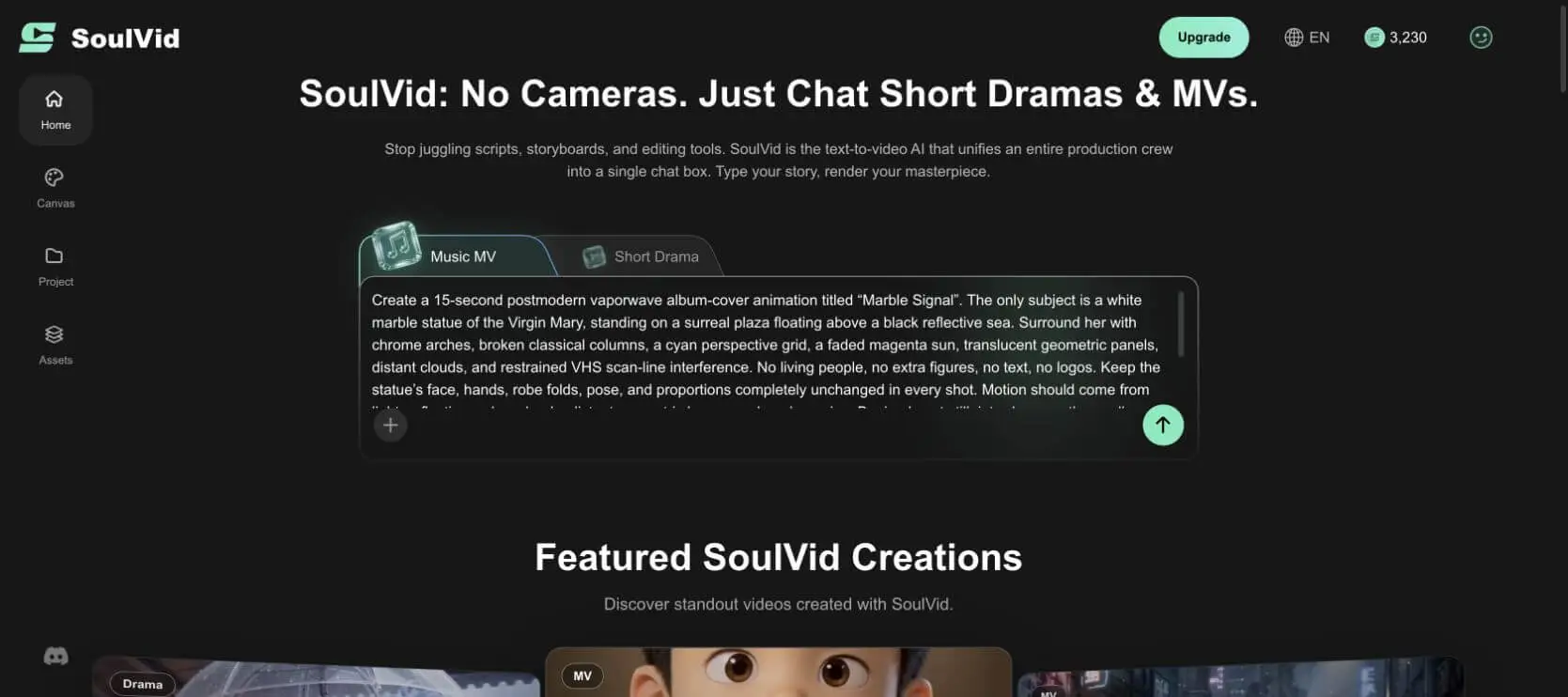
Use the Song or a Temporary Rhythm Track
SoulVid begins its Music MV workflow with an uploaded track or AI-generated music. If the release master is ready, upload that file so scene timing follows the real dynamics. For this fictional test, I generated an instrumental track described as vaporwave, ambient synth, sacred, cinematic, slow, and textured with analog tape.
The generated track provided a longer arrangement, so I selected its opening segment and explicitly set a 15-second result. Treat the song as timing input and choose the section that best supports the visual deliverable.
Pick a Working Format and Protect the Square Crop
For this workflow, I chose 9:16 as the working canvas, kept the interface language in English, and directed the visual plan toward clean 3D game-engine realism. The statue and signal remained inside a centered square-safe area so the same composition could support vertical promotion and a later 1:1 crop.
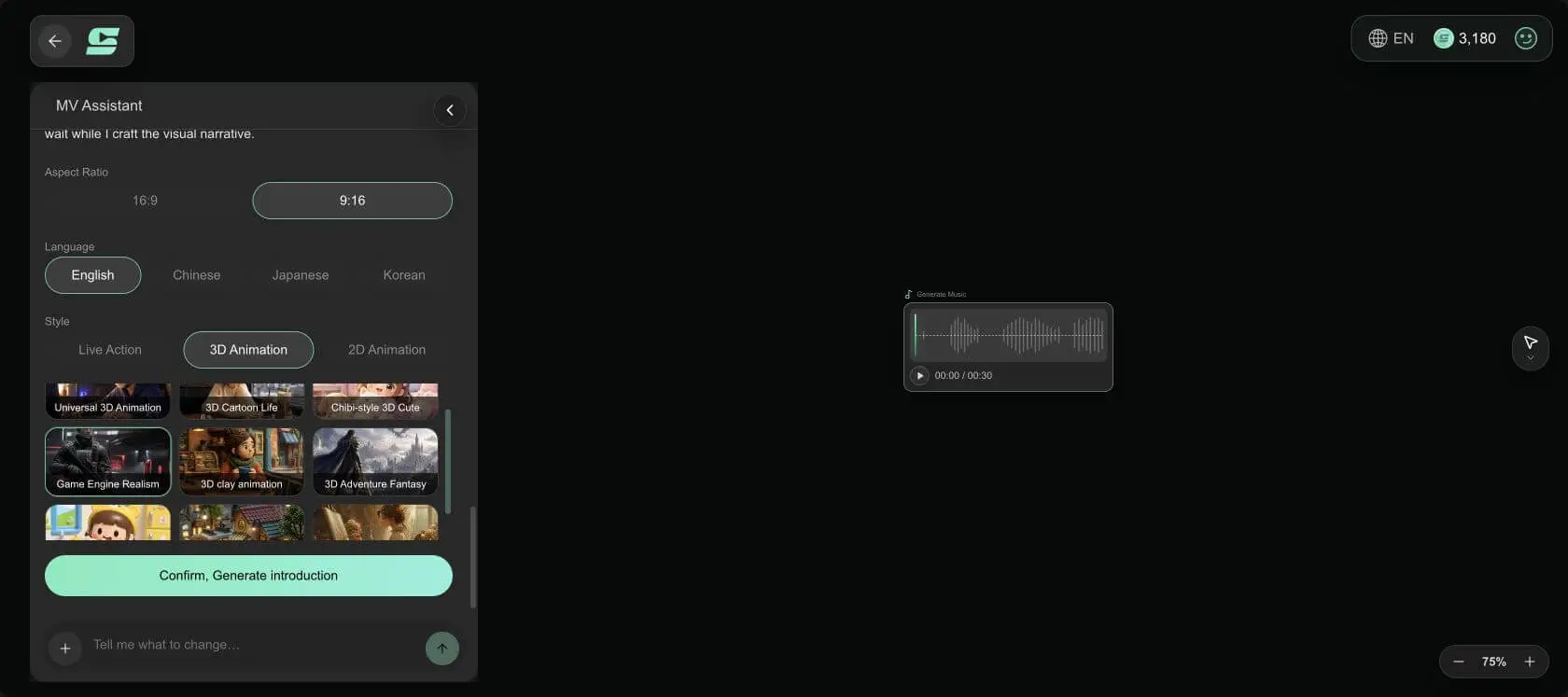
Do not stretch a square cover to fit a portrait canvas. Extend the environment above and below it, or start with a portrait composition that preserves the same centered cover world.
Review the Outline Before Generating Assets
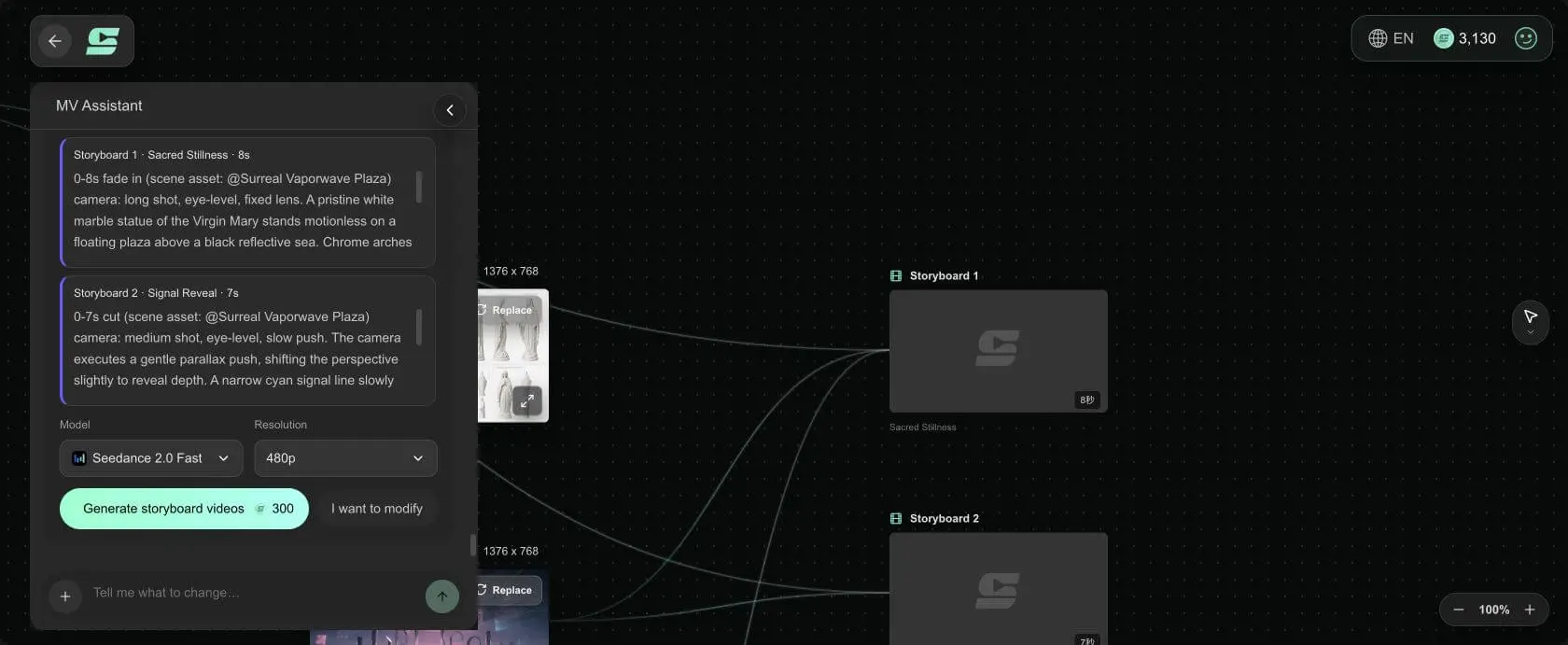
SoulVid preserved the statue, sea, arches, columns, sun, grid, and cyan signal in its first summary. The first outline used a 30-second music segment, and I refined it into two shots totaling 15 seconds: Sacred Stillness for eight seconds and Signal Reveal for seven.
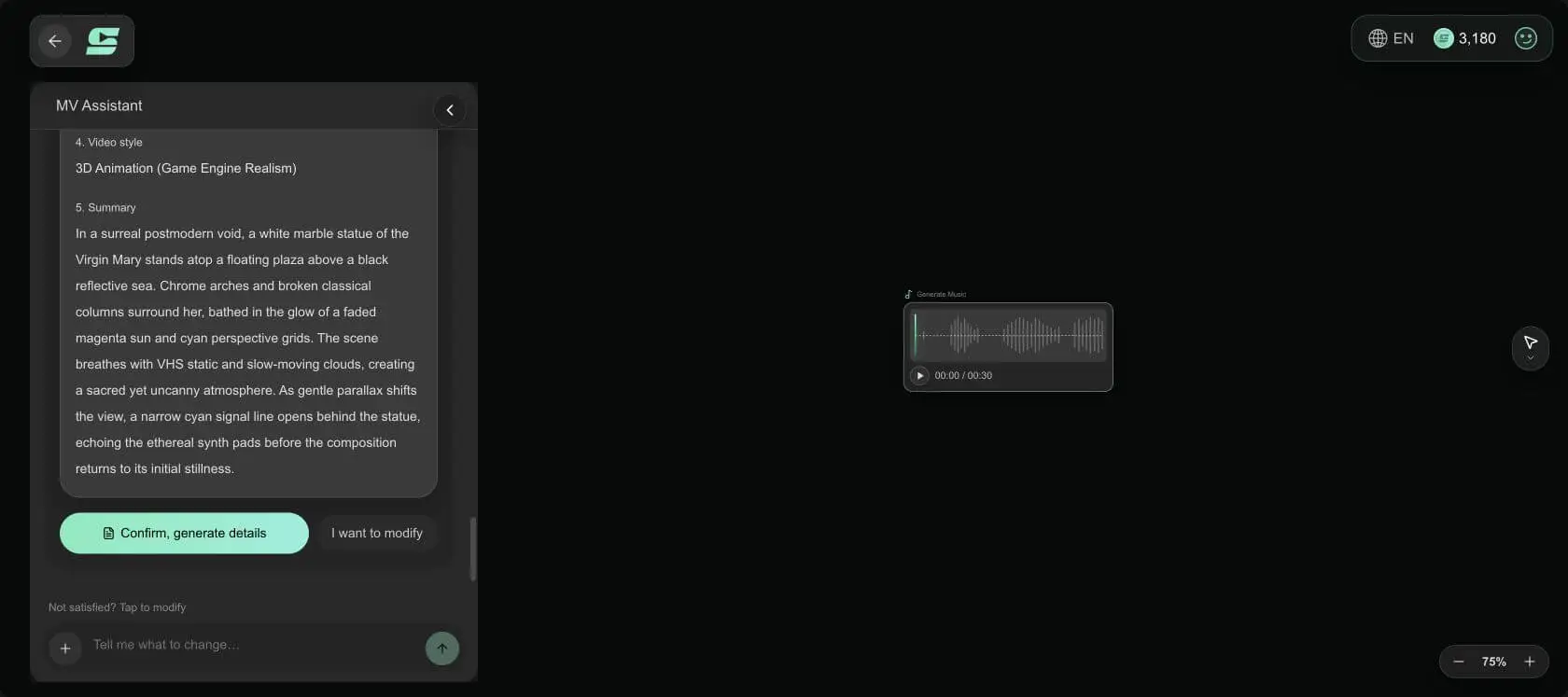
The project began from a Live Action setup, then the generated visual plan developed the marble vaporwave concept into 3D game-engine realism. From that point onward, I repeated the 3D material, palette, camera, and atmosphere in the brief, reference assets, and card-level prompts so the finished direction stayed visually consistent.
Generate Separate References for the Subject and World
The asset pass created references for the marble statue, vaporwave plaza, chrome arch fragment, and broken classical column. This separation matters. It gives the storyboard a stable subject, a stable location, and reusable props instead of asking one prompt to remember the entire cover from scratch.
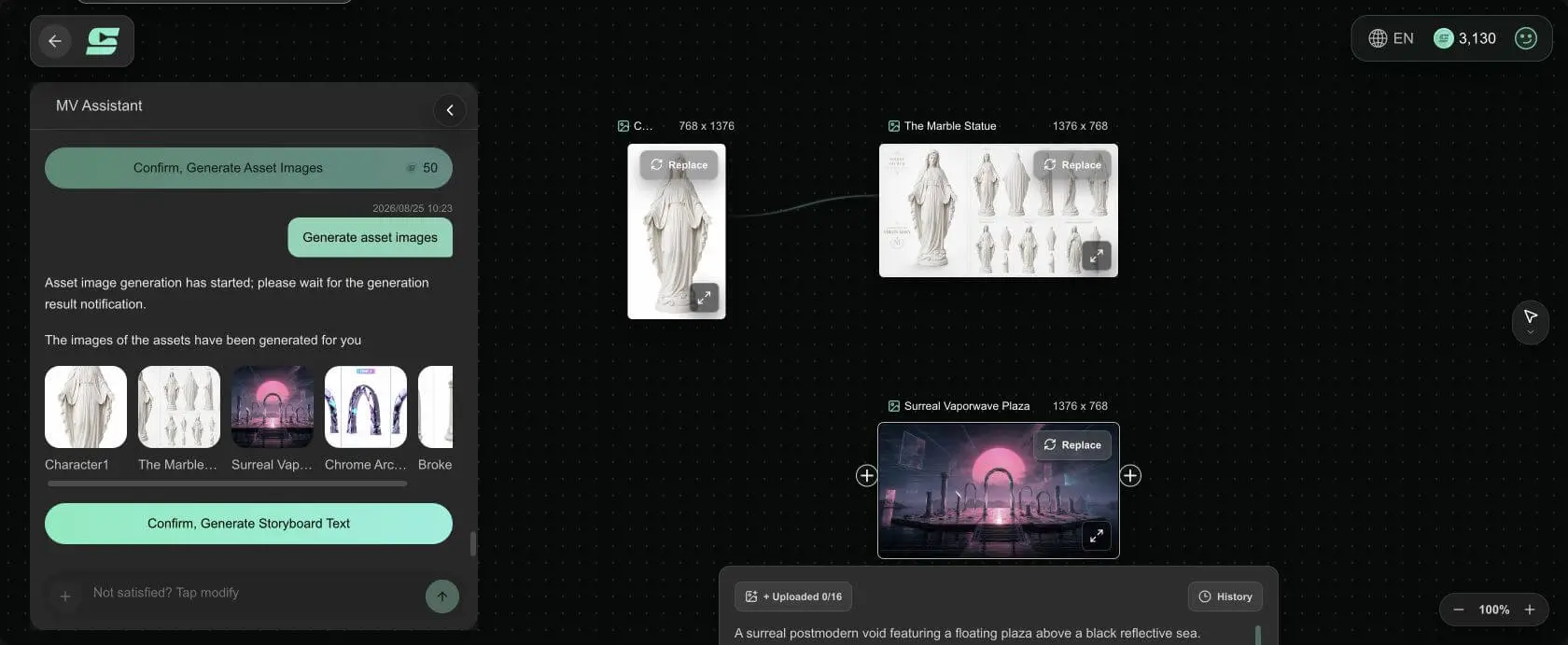
Before moving on, I selected only the approved statue, plaza, arch, and column references for the storyboard. Keeping the asset set intentional made each card easier to direct and compare, especially when the main subject was a statue rather than a human character.
Turn the Plan into Two Focused Storyboard Cards
The 15-second plan became two video cards. The first uses an eye-level fixed long shot. The second uses an eye-level slow push for the cyan signal reveal. This is more reliable than putting a fixed shot, parallax move, reveal, return, and loop instruction into one long generation.
If you want to plan more complex sequences, this AI video storyboard guide explains how to test shot purpose, camera continuity, and reference use before generating video.
Generate, Inspect, and Finish the Export
For the test, I generated both cards with Seedance 2.0 Fast at 480p preview quality. This pass was enough to judge the statue, motion strength, parallax direction, and signal reveal before reserving higher-quality generation for the selected direction.
The selected preview was an 8.04-second, 496 × 864 portrait clip with the statue centered in front of the magenta sun and chrome arch. The subject remained recognizable while the scene carried the atmosphere. That is the Sacred Static video shown at the beginning of this guide.
After comparing both directions, Sacred Static became the publishable lead because it preserved the cover identity with the quietest, most controlled motion. Signal Reveal remained a useful second-pass storyboard direction. I strengthened that card by adding The Marble Statue as a card-level reference and repeating the face, hands, robe, pose, material, scale, and position locks in its prompt.
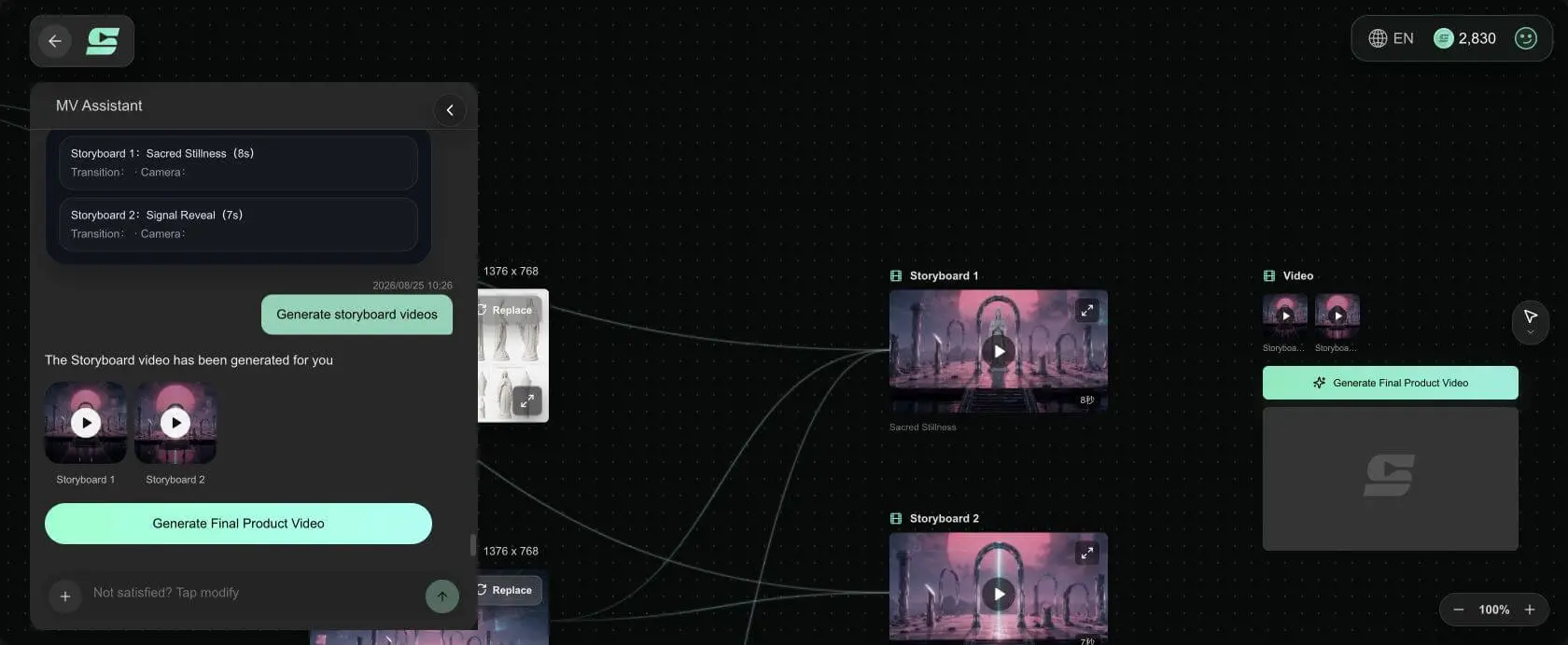
That review produced a clear production decision: use the quiet loop as the publishable direction, keep the 15-second prompt as a stronger second-pass brief, and move each card into final assembly only after it passes the identity check.
Check these items before exporting:
- The statue keeps the same face, hands, pose, robe folds, material, and screen position.
- The first shot establishes the artwork before the camera begins to move.
- The cyan reveal reads clearly at phone size without becoming a strobe.
- The vertical composition still survives a centered 1:1 crop.
- The final frame can cut, dissolve, rebound, or return cleanly to the chosen opening.
- Typography and the artist logo are added after generation, not regenerated inside the image.
Use the final editor to crop the square version, reconnect the soundtrack, restore the exact cover typography, and export platform-specific variants. For a short streaming loop rather than a release teaser, follow the size and seam checks in this Spotify Canvas guide.
Build the Visual World Before You Render Every Clip
Bring your track and cover direction into SoulVid, then review the assets and storyboard before turning the strongest motion idea into video.
Try the SoulVid AI Music Video GeneratorThree Copy-Ready Album Cover Animation Prompts
Use these as separate generations. Keeping each prompt focused makes it easier to compare motion systems without changing the artwork itself.
Sacred Static Prompt
Create a six-second seamless ambient loop from the approved square Marble Signal album cover. A pristine white marble statue of the Virgin Mary remains completely motionless and centered on a floating postmodern plaza above a black reflective sea. Keep her face, hands, robe folds, pose, proportions, marble texture, and position identical to the source image.Use a locked square camera with no zoom or reframing. Animate only the environment: distant clouds drift extremely slowly, the black sea reflection makes one soft repeating ripple, the cyan perspective grid emits one gentle pulse, the faded magenta sun changes brightness by less than ten percent, and restrained VHS scan lines travel across the frame without obscuring the statue.
Return every moving layer to its exact opening state by the final frame. No body motion, facial motion, cloth movement, new objects, living people, extra statues, text, logos, hard cuts, flashes, glitches that distort the subject, or camera movement. Elegant, sacred, uncanny, clean cinematic 3D realism. The first and final frames must connect as a continuous loop.
Digital Procession Prompt
Animate the approved Marble Signal album cover as an eight-second layered parallax shot. Keep the white marble Virgin Mary statue perfectly centered, rigid, and identical to the source artwork. Preserve her face, hands, robe folds, pose, proportions, marble texture, and distance from the frame edges.Create subtle depth using four visual planes. The nearest broken column fragments move laterally by a small amount. The chrome arches move more slowly. The statue and plaza remain nearly fixed. The cyan grid, faded magenta sun, translucent panels, clouds, and black reflective sea move at the slowest rate. Add a very gentle forward camera push of no more than five percent across the full shot.
Reflections and light should respond naturally to the parallax, but architecture must not bend or multiply. No rotation around the statue, face reveal, anatomy change, living people, extra figures, text, logos, aggressive zoom, fast motion, camera shake, heavy glitching, or new scenery. Premium postmodern vaporwave art, clean game-engine realism, quiet and hypnotic.
The Signal Opens Prompt
Create a 15-second release teaser based on the approved Marble Signal album cover. The only subject is the same pristine white marble statue of the Virgin Mary on a floating plaza above a black reflective sea. Lock her face, hands, robe folds, pose, proportions, material, scale, and centered position across the entire sequence. Keep the chrome arches, broken classical columns, cyan grid, faded magenta sun, translucent geometric panels, clouds, and color palette consistent.0-5 seconds: begin in near stillness with a locked wide composition. Use only faint VHS scan lines, slow cloud movement, and a minimal reflection ripple.
5-10 seconds: make a gentle forward camera push with restrained parallax between the nearest column fragments, chrome arches, statue, and distant grid. Do not orbit or change the statue.
10-15 seconds: a narrow vertical cyan signal line opens behind the statue, sending one soft light response across the black sea and chrome surfaces. The signal then narrows while the camera eases back toward the opening composition so the ending can connect visually to the first shot.
No living people, extra statues, body movement, facial animation, talking, singing, text, logos, typography, new props, rapid cuts, strobing, explosions, horror elements, or destructive glitch effects. Sacred, uncanny, elegant postmodern vaporwave; cinematic 3D realism; restrained motion; phone-readable composition.
For more genre variations, adapt the camera, palette, and atmosphere from these AI music video prompts while keeping your cover anchors unchanged.
Prepare Album Art Before Adding Motion
Work from a Clean Master
Use the highest-resolution artwork available. Keep a version without title, artist name, label marks, parental advisory badges, or release copy. AI video models often warp small letters and logos, so add the original typography back in the final editor.
Define the Identity Lock
Write down the five details that make the cover recognizable. For this case they are the statue, pose, marble material, centered composition, and cyan-magenta-black palette. If a detail is not on the lock list, the model has more freedom to change it.
Choose One Primary Motion Rule
One strong motion idea is easier to remember than six weak ones. Decide whether the cover breathes, drifts in depth, reacts to light, reveals an object, or hides a loop seam. Secondary motion should support that rule.
Keep Important Details Away from Crop Edges
A release may need 1:1 artwork, a 9:16 story, a vertical Spotify Canvas, a 16:9 YouTube visualizer, and a cropped feed preview. Keep the face, logo, title area, and visual hook inside a central safe region, then test every crop before final rendering.
Treat the First Frame as a Brand Asset
The opening should look intentional when paused. Social platforms, slow connections, thumbnails, and embeds may show a single frame before playback. A strong first frame also gives the loop a clear state to return to.
Compare the Main AI Album Cover Animation Methods
| Method | Best at | Control | Speed | Consideration | Best user |
|---|---|---|---|---|---|
| One-shot image-to-video | Fast atmospheric motion | Low | Fastest | Subject and typography may drift | Artist testing several quick ideas |
| Layered parallax editor | Predictable depth from one cover | High | Medium | Requires clean masks and manual setup | Designer who wants exact brand control |
| SoulVid storyboard workflow | Song-led planning, assets, shots, and revision | Medium-high | Medium | Includes a planning and storyboard review stage | Musician or small team building several release visuals |
| Full 3D scene | Camera freedom and reusable world | Highest | Slowest | Highest skill, cost, and production time | Label campaign or long-term visual system |
Choose one-shot image-to-video for a fast teaser when small visual changes are acceptable. Choose layered parallax when the cover must remain exact and depth is enough. Choose SoulVid when the cover is part of a larger song-first workflow and you want visible assets and storyboard cards. Choose full 3D when the same world needs many camera angles, videos, and future releases.
SoulVid is especially effective when the cover belongs to a wider release system rather than one isolated clip. Its planning layer keeps the song, world, references, and shot roles connected, while the finishing editor handles exact typography and platform crops. This broader guide to making a music video with AI shows how the same workflow can extend beyond a cover animation.
Fix Common Animated Cover Problems
The Main Subject Changes
Reduce subject motion to zero, repeat the identity lock in every shot, and use the approved still as a reference. If the statue, face, product, or character is the cover identity, animate around it. For human-led art, use the reference workflow in this guide to keeping characters consistent in AI video.
The Result Looks Like a Slideshow
Add a continuous relationship between layers: reflection responding to light, haze revealing depth, or foreground movement tracking with the camera. Parallax alone looks artificial when every layer moves at a constant speed.
The Loop Jumps
Compare the first and final frames. If the states cannot match, use a rebound loop or hide a hard cut behind darkness, a foreground object, a flash that is appropriate to the music, or a full-frame reflection wipe. Do not rely on a long dissolve when the subject has already changed shape.
The Cover Typography Warps
Generate from a clean art master and overlay the original type afterward. Treat typography as a design layer, not as content the video model should redraw 24 times per second.
Too Much Is Moving
Remove one motion layer at a time. A focal subject, one primary event, and one atmospheric texture are usually enough. Album art should still read as the release image when the sound is off.
FAQ
Can I animate album art with AI from one image?
How long should an animated album cover be?
Should I animate the singer or character on the cover?
What size should I use for animated album artwork?
How do I prepare square and vertical album cover animations in SoulVid?
How do I make an AI album cover loop seamlessly?
Can I use an AI-animated cover commercially?
Animate the World, Not the Identity
The strongest Marble Signal version does not make the statue perform. It lets the world acknowledge her: the sea reflects, the grid responds, the camera discovers depth, and the cyan signal opens. That restraint keeps the motion connected to the cover instead of replacing it with a different piece of art.
Approve the still, lock the identity, choose one motion rule, and test the shortest useful version first. Once that visual language works, the same assets can support a loop, teaser, visualizer, lyric clip, or full AI music video.
Turn One Cover Direction into a Planned Visual Release
Use SoulVid to connect your song, references, storyboard, and generated shots, then finish each platform crop with the original artwork and typography.
Create an AI Music Video with SoulVid